Connect Clusters
Connect clusters are required when using MirrorMaker 2 or Confluent Replicator as your replication tool. These clusters host the replication connectors that move data between Kafka clusters.
Connect Cluster Summary
Section titled “Connect Cluster Summary”The summary page displays all registered Connect clusters with their validation status. Use the search bar to locate a specific cluster.
Adding a Connect Cluster
Section titled “Adding a Connect Cluster”Click Add Connect Cluster to open the registration form.
Basic Information
Section titled “Basic Information”| Field | Required | Description |
|---|---|---|
| Cluster Alias | Yes | A unique name for the Connect cluster. |
| Description | No | Optional description of the cluster. |
| Tags | No | Optional tags for organization. |
| REST Endpoint | Yes | The URL of the Kafka Connect REST API. |
SSL Certificate Locations and Keytab Paths
Section titled “SSL Certificate Locations and Keytab Paths”If SSL or Kerberos authentication is configured on the associated Kafka clusters, provide the file paths as they exist on the Connect cluster host. These paths tell the Connect workers where to find the certificates and keytab files at runtime.
Source Kafka Cluster SSL Locations
Section titled “Source Kafka Cluster SSL Locations”| Field | Description |
|---|---|
| Keystore Location | Path to the keystore file on the source Connect worker. Example: /etc/kafka/ssl/source-keystore.jks |
| Truststore Location | Path to the truststore file on the source Connect worker. Example: /etc/kafka/ssl/source-truststore.jks |
Destination Kafka Cluster SSL Locations
Section titled “Destination Kafka Cluster SSL Locations”| Field | Description |
|---|---|
| Keystore Location | Path to the keystore file on the destination Connect worker. Example: /etc/kafka/ssl/dest-keystore.jks |
| Truststore Location | Path to the truststore file on the destination Connect worker. Example: /etc/kafka/ssl/dest-truststore.jks or a custom path such as /mnt/kafka/external-configuration/app-certs-cz |
Kerberos Keytab Locations (GSSAPI)
Section titled “Kerberos Keytab Locations (GSSAPI)”Ensure your Connect workers already have the keytab files deployed to their filesystem before filling in these paths. KMI does not transfer keytab files to Connect workers; it only passes the paths to the connector configuration.
When a source or destination Kafka cluster uses Kerberos, provide the filesystem paths where the Connect workers can find the keytab files at runtime. If the destination cluster also uses SSL, ensure the destination truststore path is set under Destination Kafka Cluster SSL Locations above.
Source Kerberos cluster
| Field | Description |
|---|---|
| Source Keytab Path | Path to the keytab file on the source Connect worker. Example: /mnt/kafka/external-configuration/kerberos-client.keytab |
Destination Kerberos cluster
| Field | Description |
|---|---|
| Destination Keytab Path | Path to the keytab file on the destination Connect worker. Example: /etc/kafka/keytabs/dest.keytab |
| Destination Truststore Location | If the destination Kerberos cluster also uses SASL_SSL, provide the path to the truststore on the destination Connect worker. Example: /mnt/kafka/external-configuration/app-certs-cz |
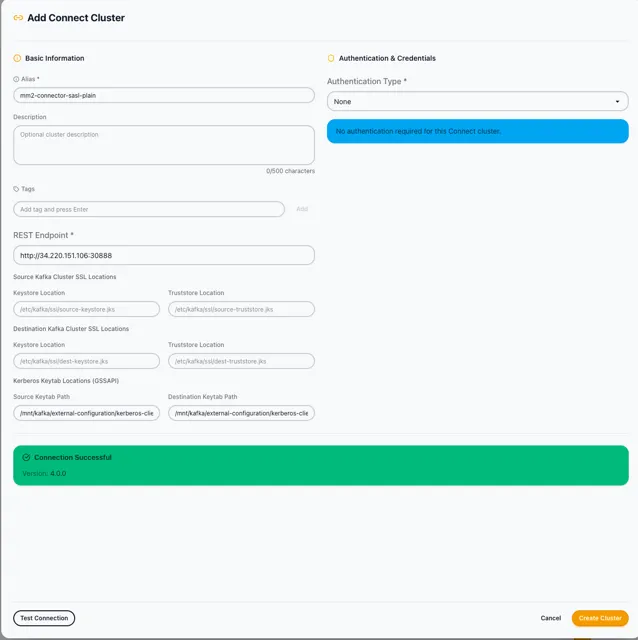
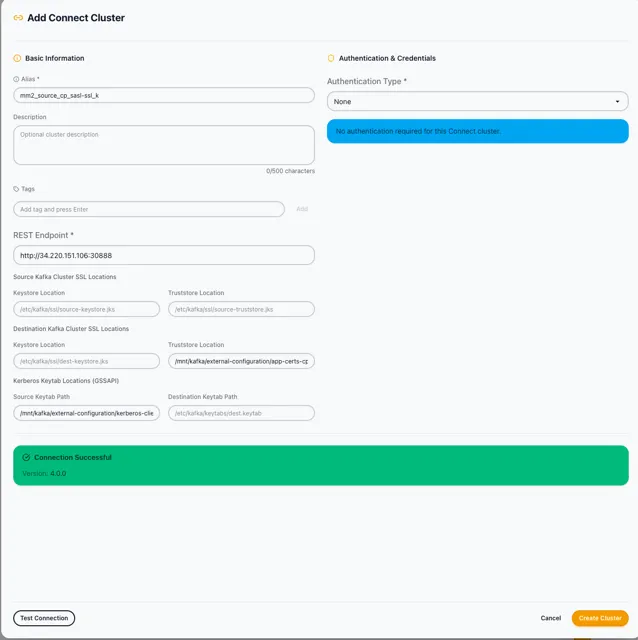
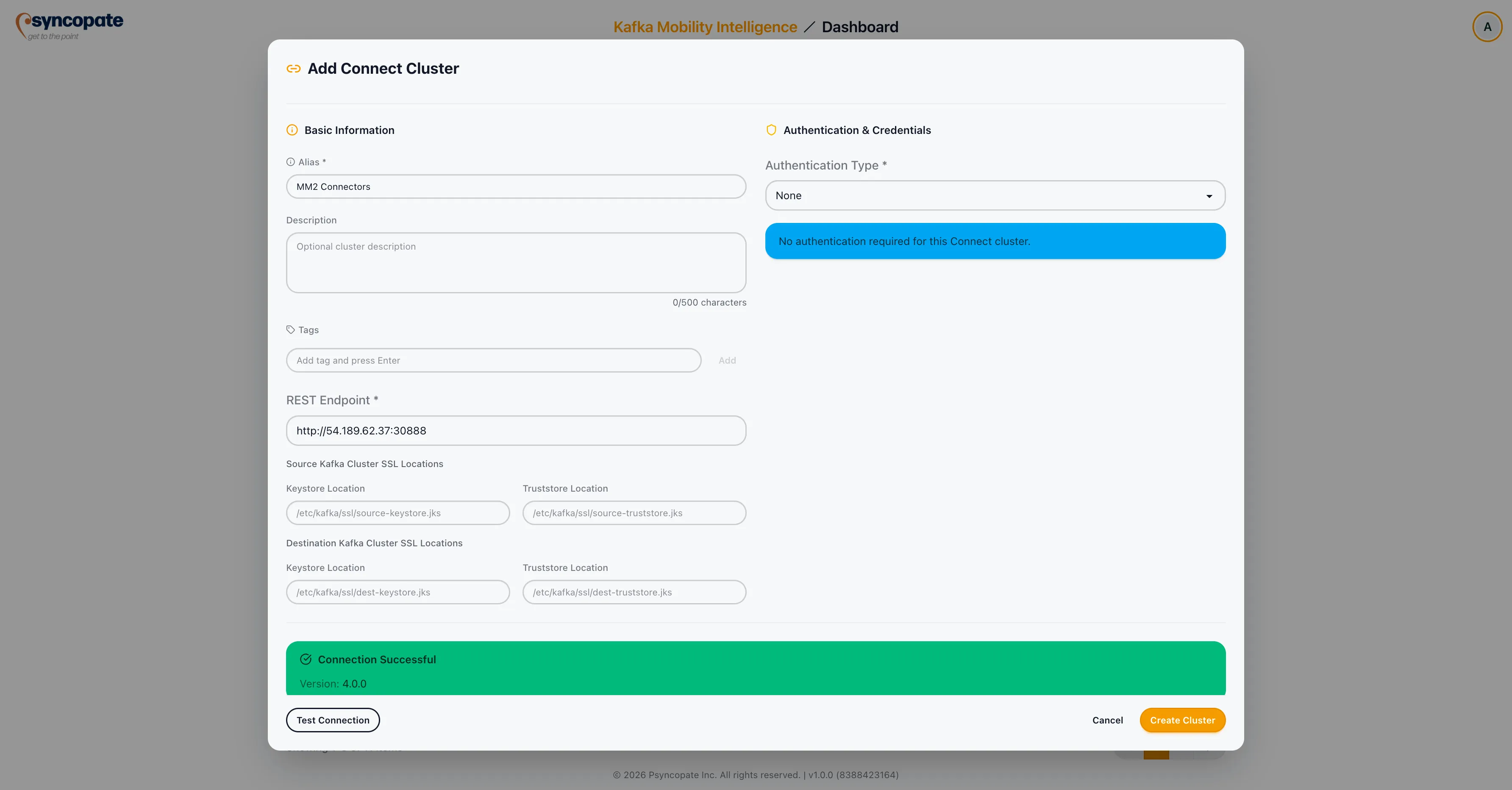
The following examples show a fully configured Add Connect Cluster form with SSL locations and Kerberos keytab paths filled in, after a successful connection test.
Authentication
Section titled “Authentication”Select the authentication method that matches your Connect cluster’s REST API configuration.
No authentication is required for the Connect REST API.
Standard username and password authentication.
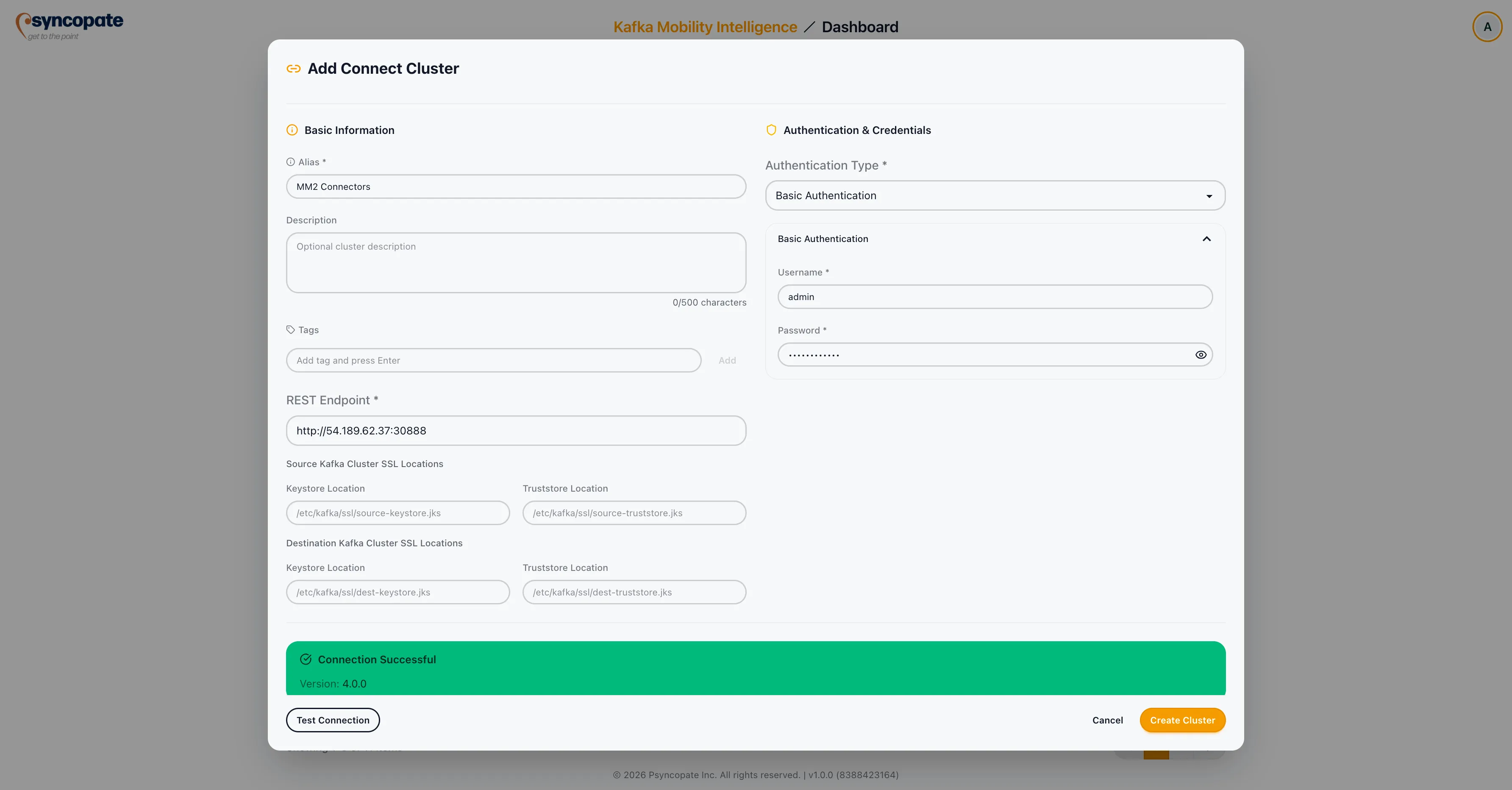
| Field | Required | Description |
|---|---|---|
| Username | Yes | Connect REST API username. |
| Password | Yes | Connect REST API password. |
API key-based authentication.
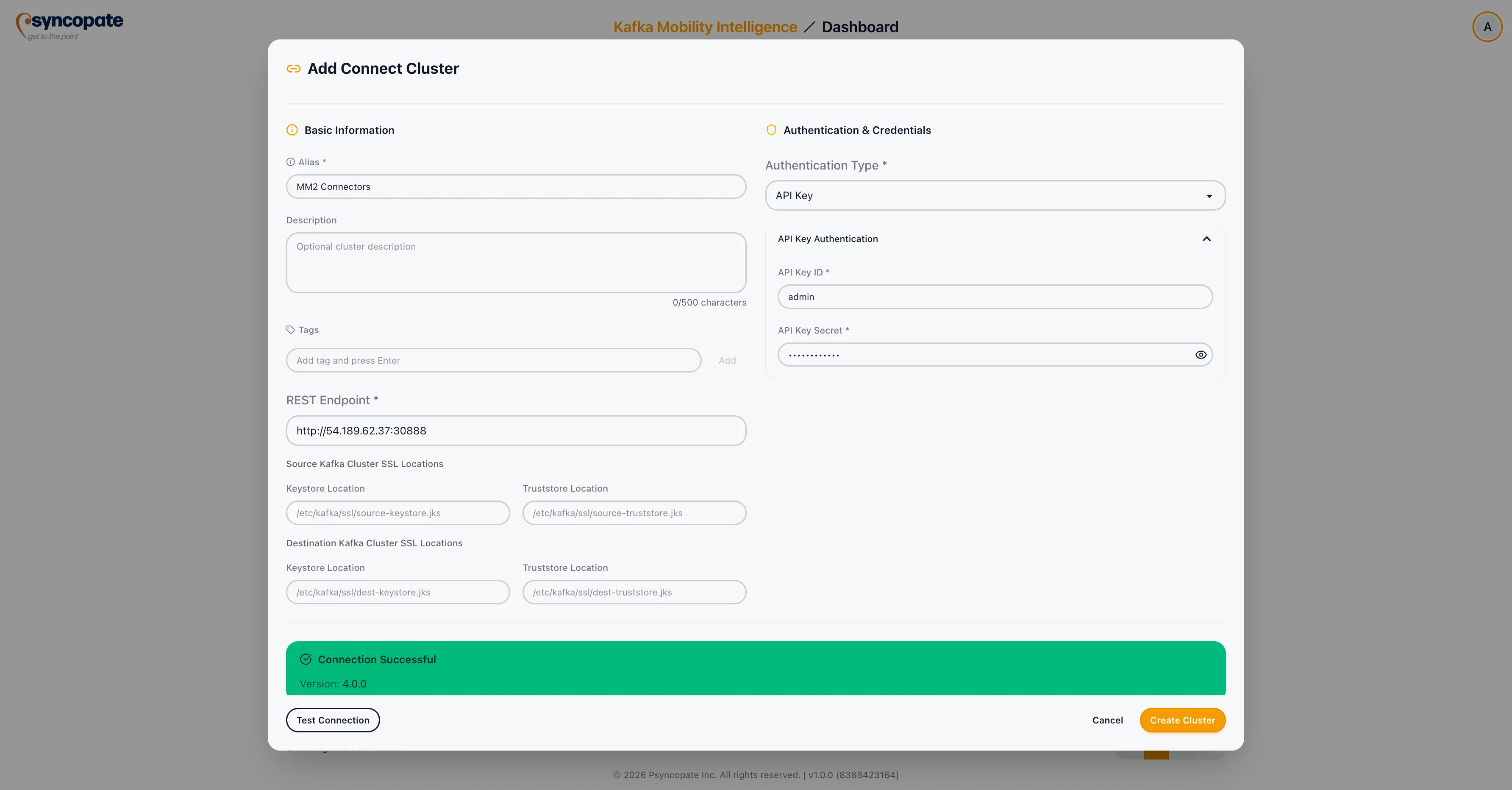
| Field | Required | Description |
|---|---|---|
| API Key | Yes | The API key for authentication. |
| API Secret | Yes | The API secret for authentication. |
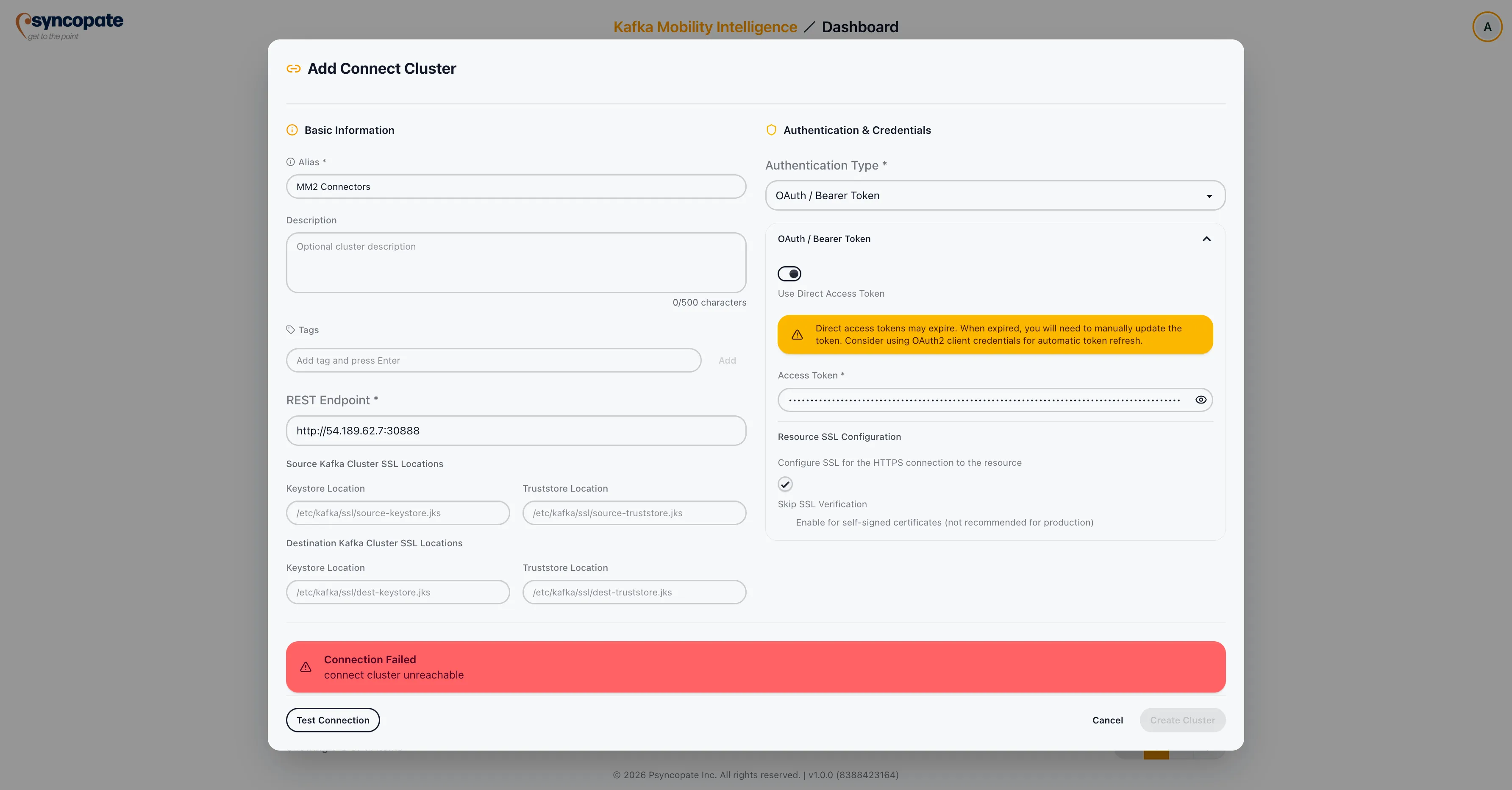
OAuth 2.0 or bearer token authentication. Toggle between two modes:
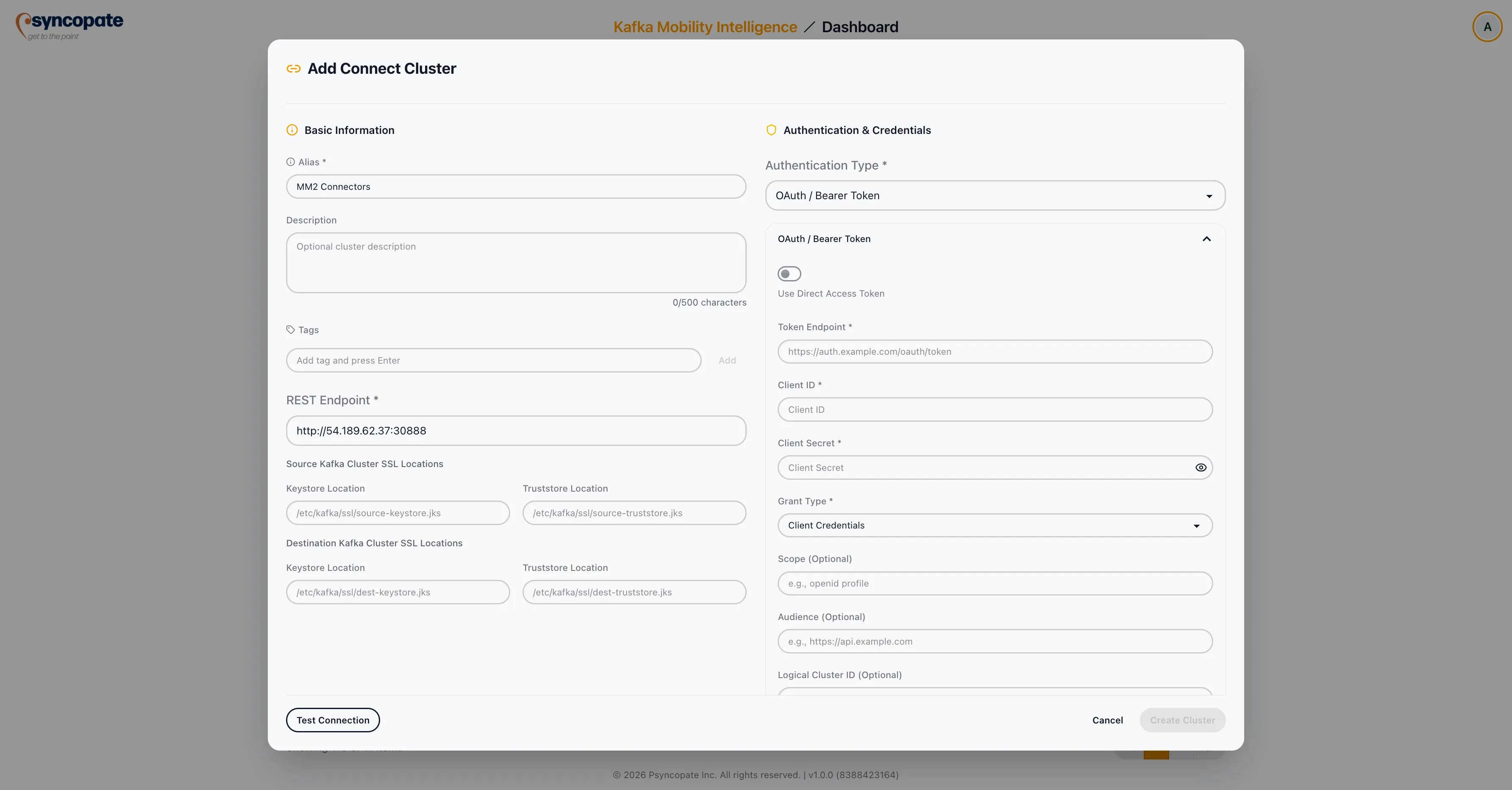
Direct Token Mode: Provide a pre-obtained bearer token.
OAuth Endpoint Mode:
| Field | Required | Description |
|---|---|---|
| Token Endpoint | Yes | The OAuth 2.0 token endpoint URL. |
| Client ID | Yes | The OAuth client identifier. |
| Client Secret | Yes | The OAuth client secret. |
| Grant Type | Yes | The OAuth grant type. Supported values: client_credentials, password, refresh_token. |
| Scope | No | OAuth scope to request. |
| Audience | No | Target audience for the token. |
SSL/TLS Truststore (optional)
If the OAuth token endpoint requires SSL verification with a custom certificate authority, provide the truststore configuration:
| Field | Required | Description |
|---|---|---|
| SSL Truststore File | No | Upload a truststore file for verifying the token endpoint’s SSL certificate. |
| SSL Truststore Password | No | Password for the truststore file. |
Certificate-based authentication using SSL/TLS client certificates. Three certificate formats are supported.
JKS (Java KeyStore)
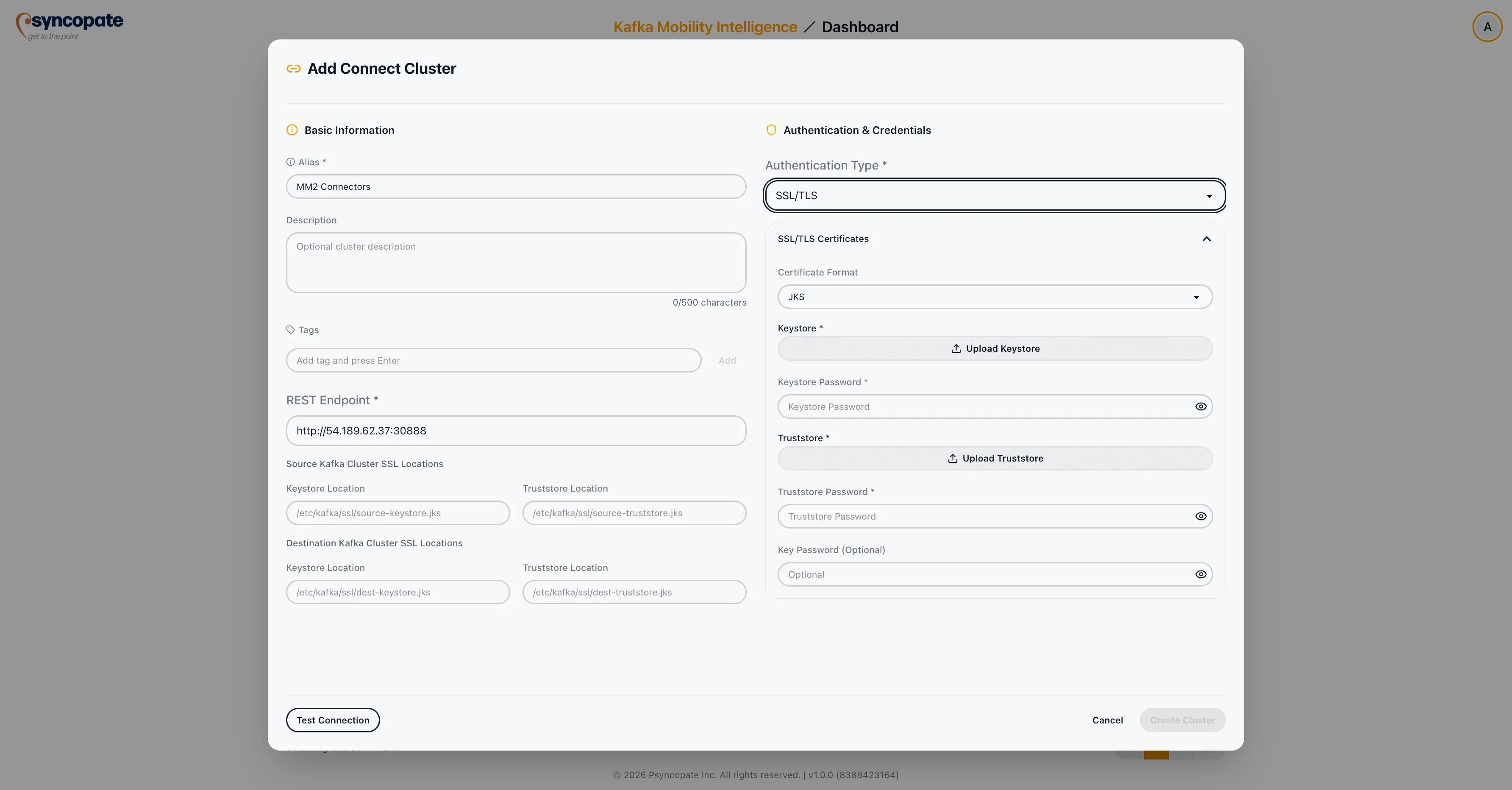
| Field | Required | Description |
|---|---|---|
| Keystore File | Yes | Upload the JKS keystore file. |
| Keystore Password | Yes | Password for the keystore. |
| Truststore File | Yes | Upload the JKS truststore file. |
| Truststore Password | Yes | Password for the truststore. |
PKCS12
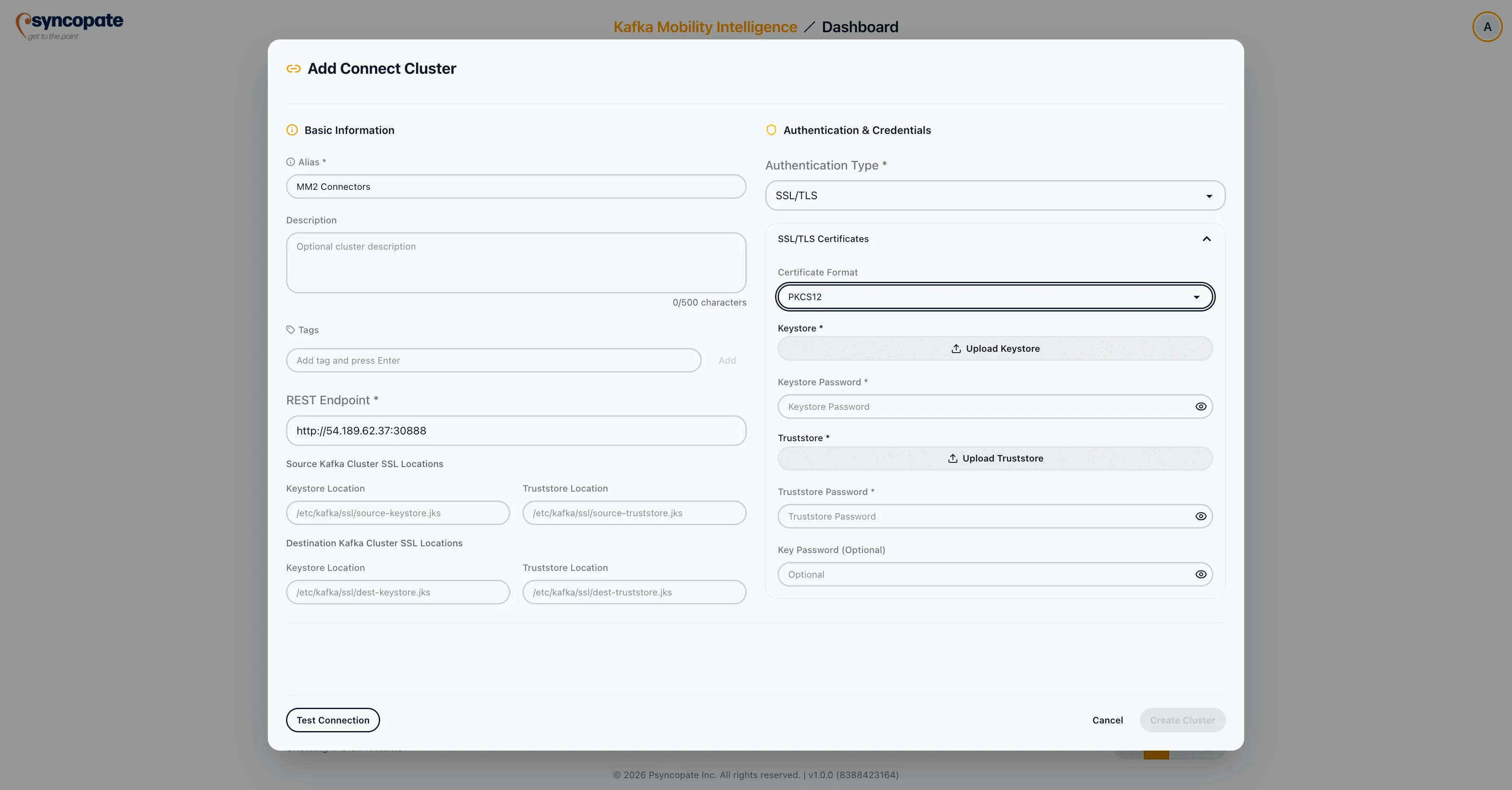
| Field | Required | Description |
|---|---|---|
| Keystore File | Yes | Upload the PKCS12 keystore file. |
| Keystore Password | Yes | Password for the keystore. |
| Truststore File | Yes | Upload the PKCS12 truststore file. |
| Truststore Password | Yes | Password for the truststore. |
PEM
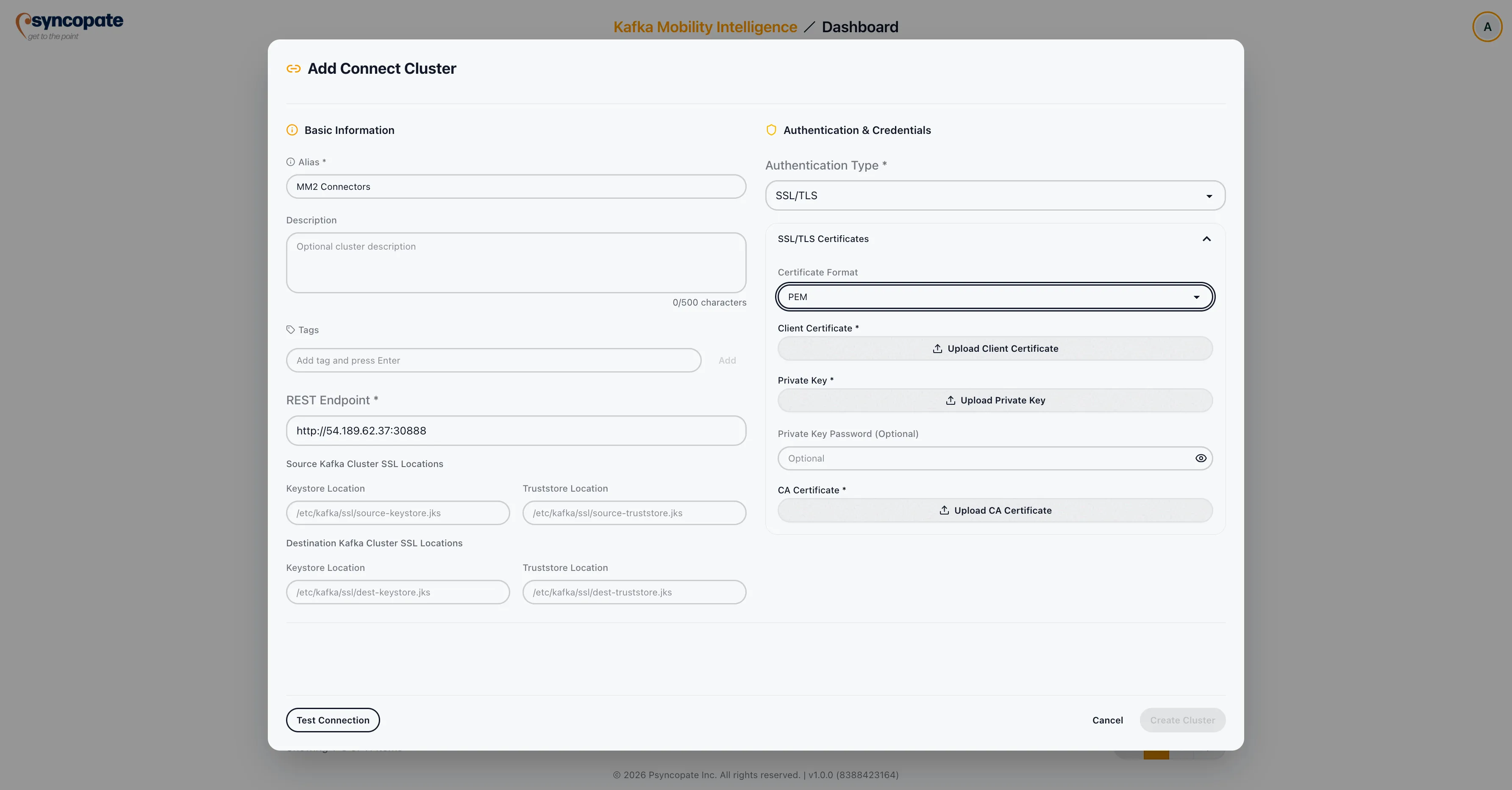
| Field | Required | Description |
|---|---|---|
| CA Certificate File | Yes | Upload the CA certificate in PEM format. |
| Client Certificate File | Yes | Upload the client certificate in PEM format. |
| Client Key File | Yes | Upload the client private key in PEM format. |
| Client Key Password | No | Password for the client private key, if the key is encrypted. |
Cloudera SMT Plugin (Cloudera Sources)
Section titled “Cloudera SMT Plugin (Cloudera Sources)”When your migration source uses Cloudera-native serialization and the replication tool is MirrorMaker 2 or Replicator, install the Cloudera re-frame Single Message Transform (SMT) on the Connect cluster. The SMT rewrites Cloudera-native wire-format bytes so Confluent consumers on the destination can deserialize them.
Installing the SMT JAR
Section titled “Installing the SMT JAR”-
Download the sample SMT Java source from the plan and build it into a jar (or use your own implementation that matches the configured class name).
-
Copy the jar to a directory on the Connect worker’s plugin path. The plugin path is the directory (or set of directories) configured in the worker’s
plugin.pathproperty (for example,/opt/kafka/plugins/).Terminal window cp cloudera-reframe-smt.jar /opt/kafka/plugins/ -
Restart the Connect worker so it picks up the new plugin.
-
Verify that the plugin is available by checking the Connect REST API:
Terminal window curl http://<connect-host>:8083/connector-plugins | grep -i reframeThe class name from your SMT configuration block should appear in the list.
Testing the Connection
Section titled “Testing the Connection”After configuring the Connect cluster, click Test Connection to verify that the suite can reach the Connect REST API with the provided credentials.
Managing Connect Clusters
Section titled “Managing Connect Clusters”Editing a Cluster
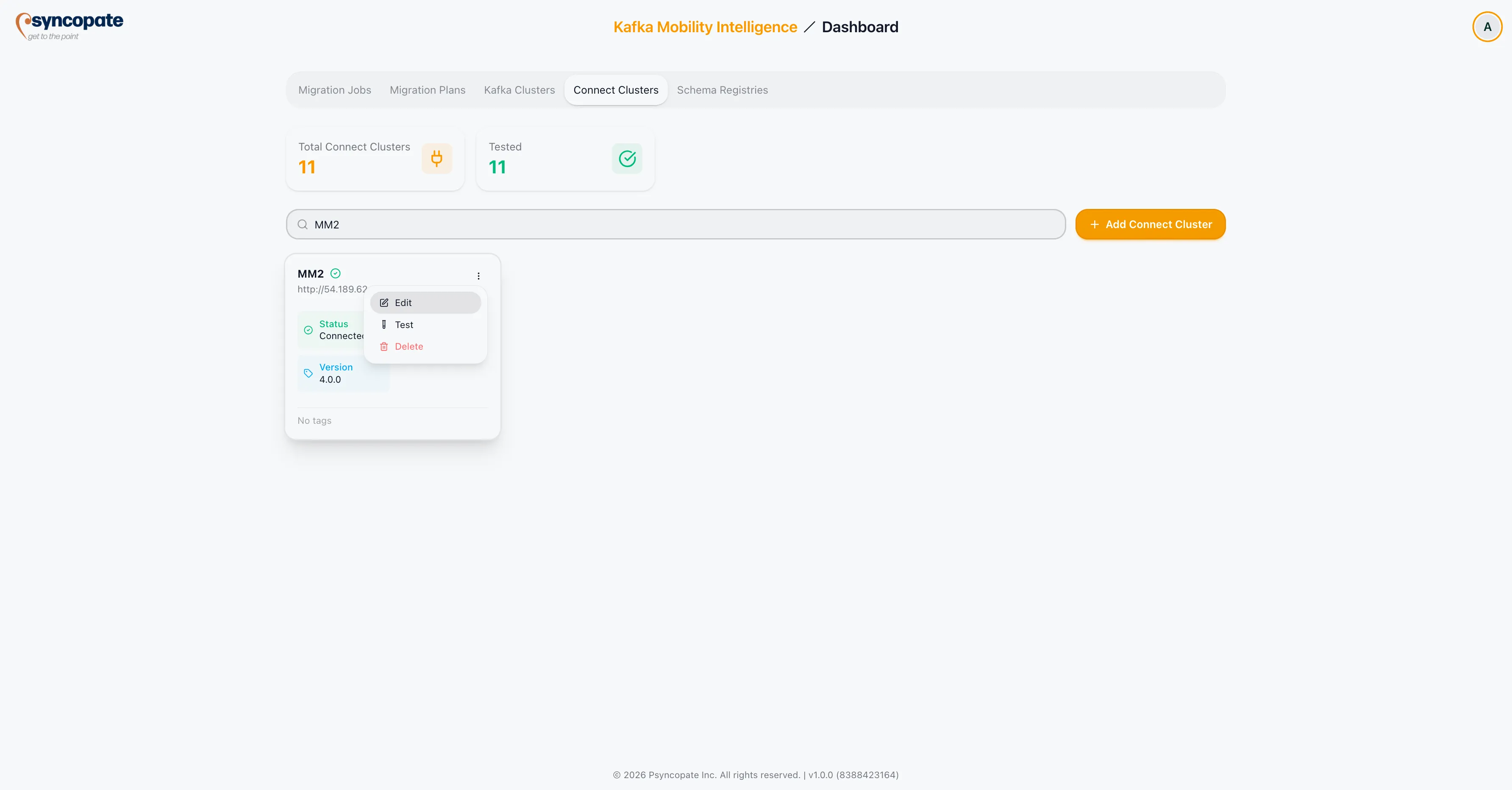
Section titled “Editing a Cluster”Click the three-dot menu on any cluster row and select Edit to modify its configuration. You can also re-test the connection from the edit view.
Deleting a Cluster
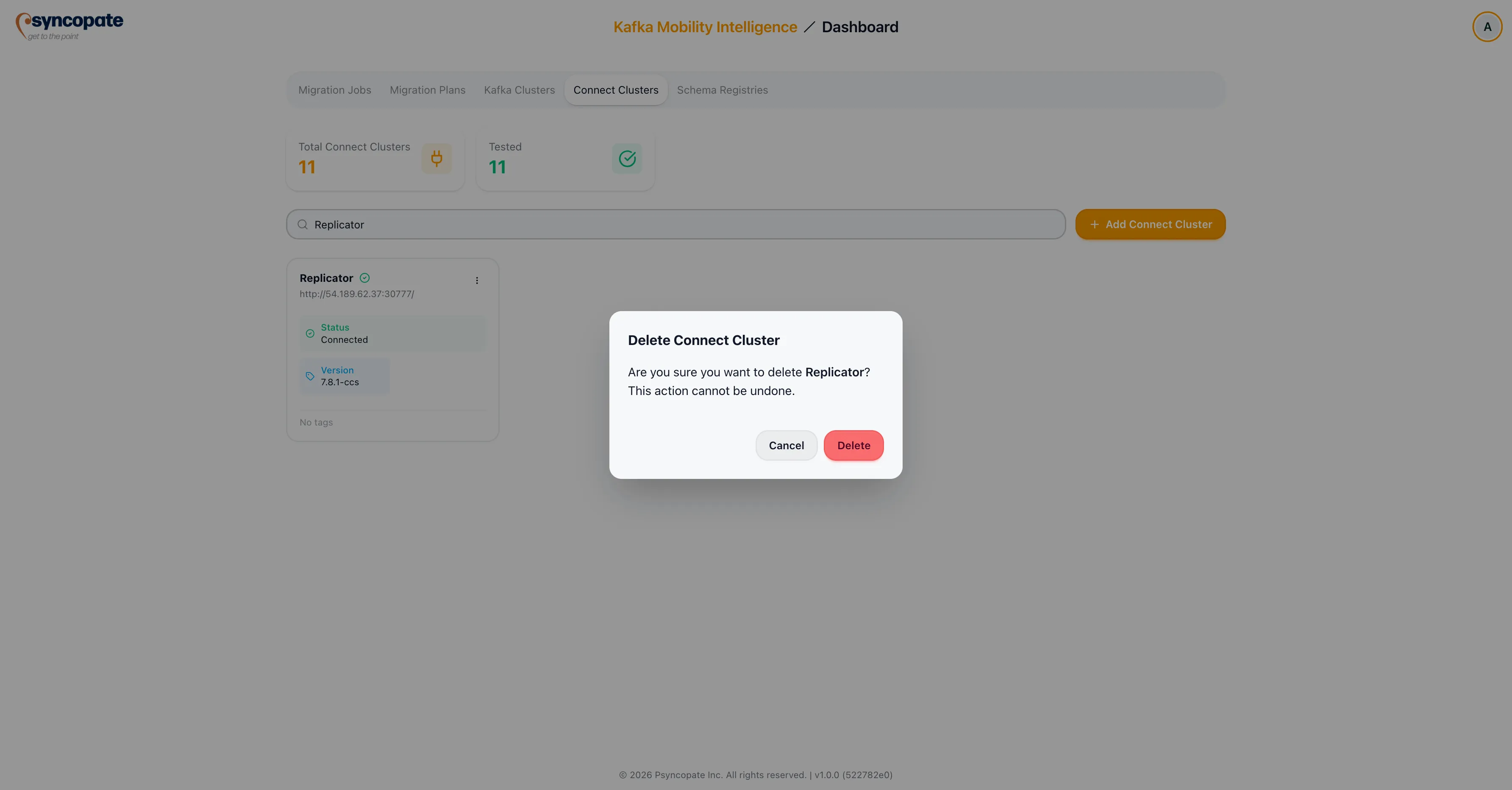
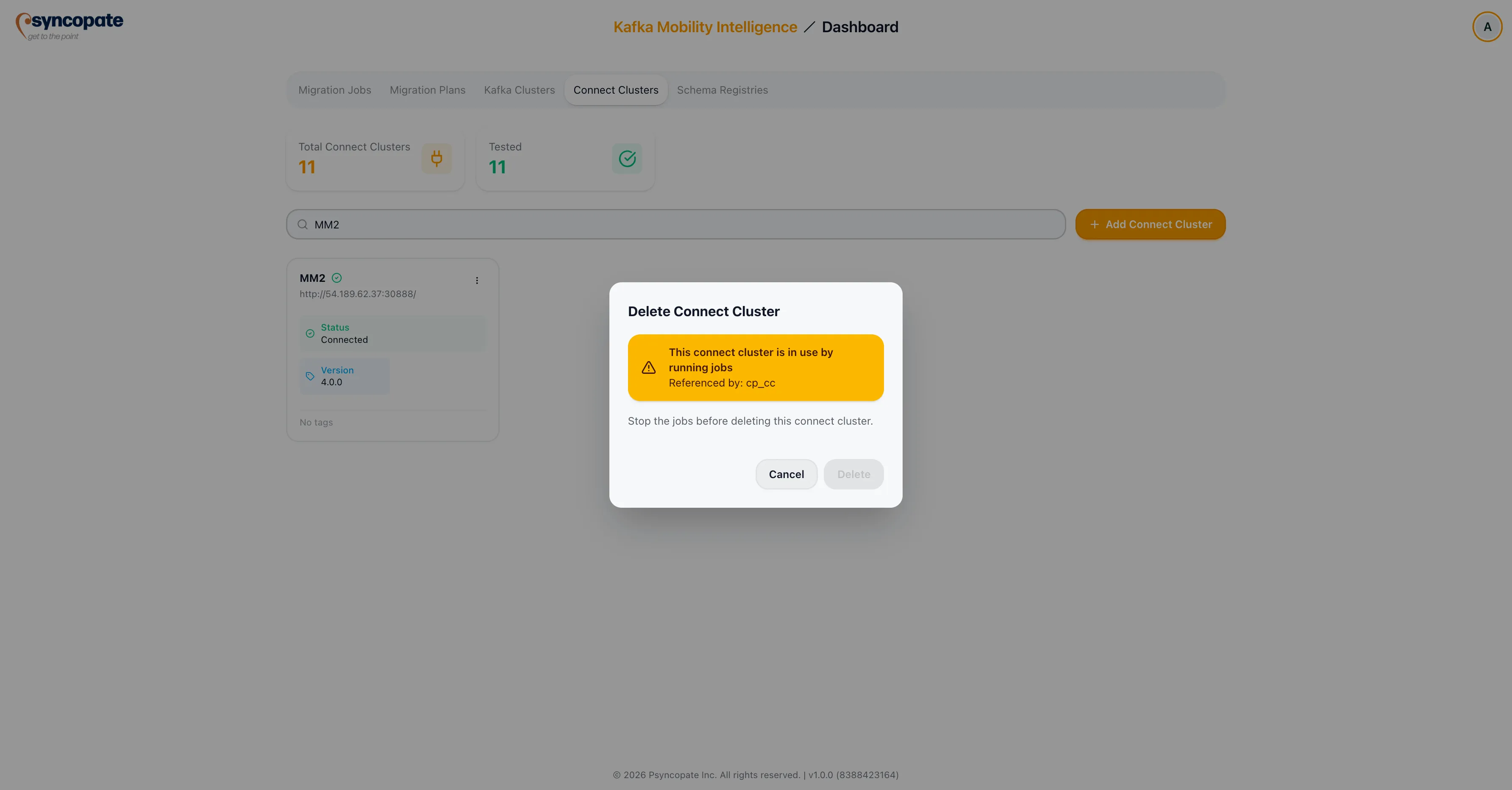
Section titled “Deleting a Cluster”Click the three-dot menu and select Delete. A confirmation dialog is displayed before the cluster is removed.