Kafka Clusters
Kafka clusters are the foundation of every migration job. You must register at least a source and a destination cluster before creating a job.
Cluster Summary
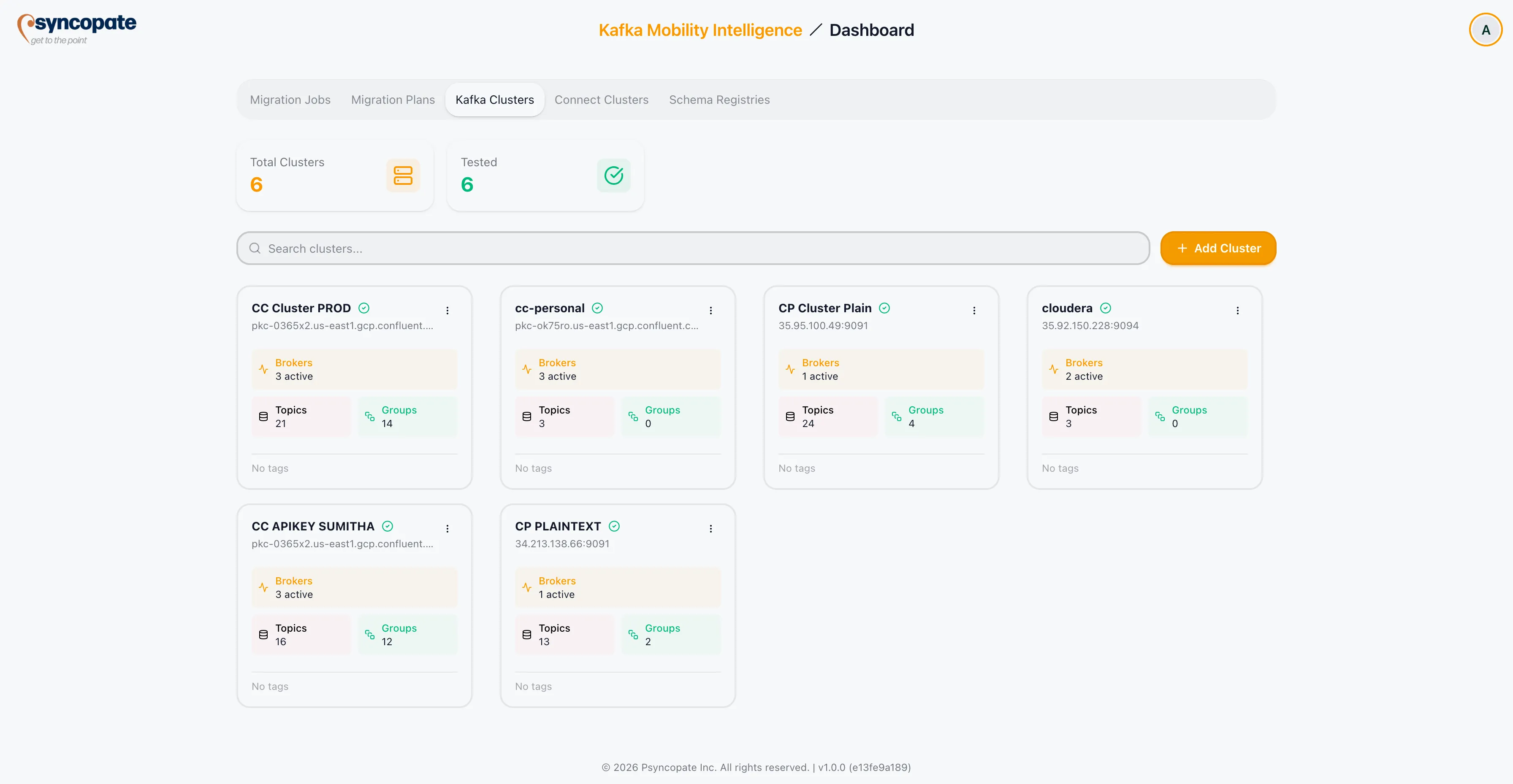
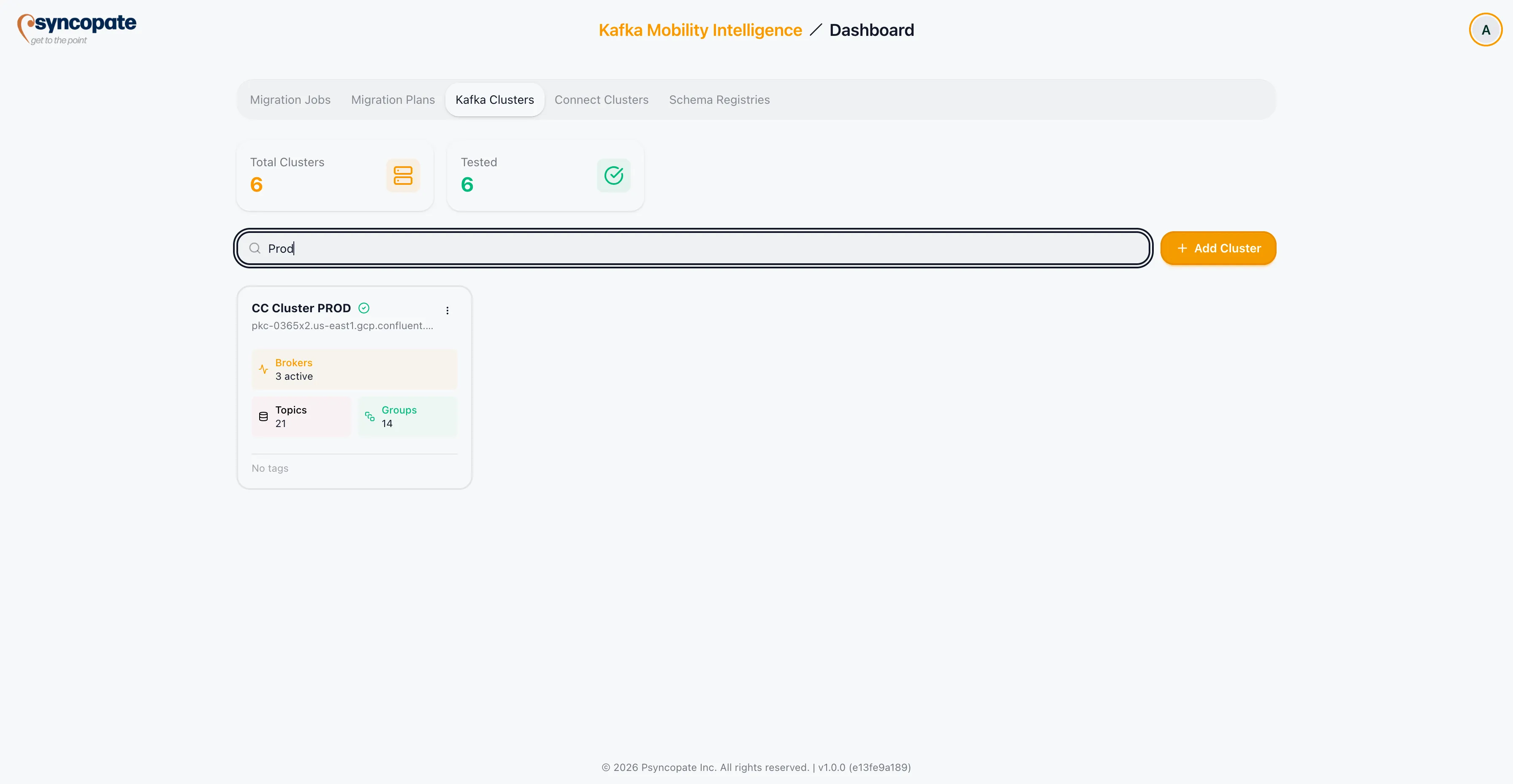
Section titled “Cluster Summary”The Cluster Summary dashboard displays all registered Kafka clusters. Use the search bar to locate a specific cluster by name.
Creating a New Cluster
Section titled “Creating a New Cluster”Click Create New Cluster to open the cluster registration form.
Basic Information
Section titled “Basic Information”| Field | Required | Description |
|---|---|---|
| Cluster Alias | Yes | A unique, human-readable name for the cluster. |
| Description | No | An optional description of the cluster’s purpose or environment. |
| Tags | No | Optional tags for organizing and filtering clusters. |
| Bootstrap Servers | Yes | Comma-separated list of Kafka broker addresses in host:port format. |
| Cluster Type | Yes | The platform type of the Kafka cluster. Options: Confluent Cloud, Confluent Platform, OSK, MSK, WarpStream, Other. |
Security Protocol
Section titled “Security Protocol”Select the security protocol that matches your cluster’s configuration. There are four security protocols available.
No additional security configuration is required. The connection uses unencrypted, unauthenticated communication.
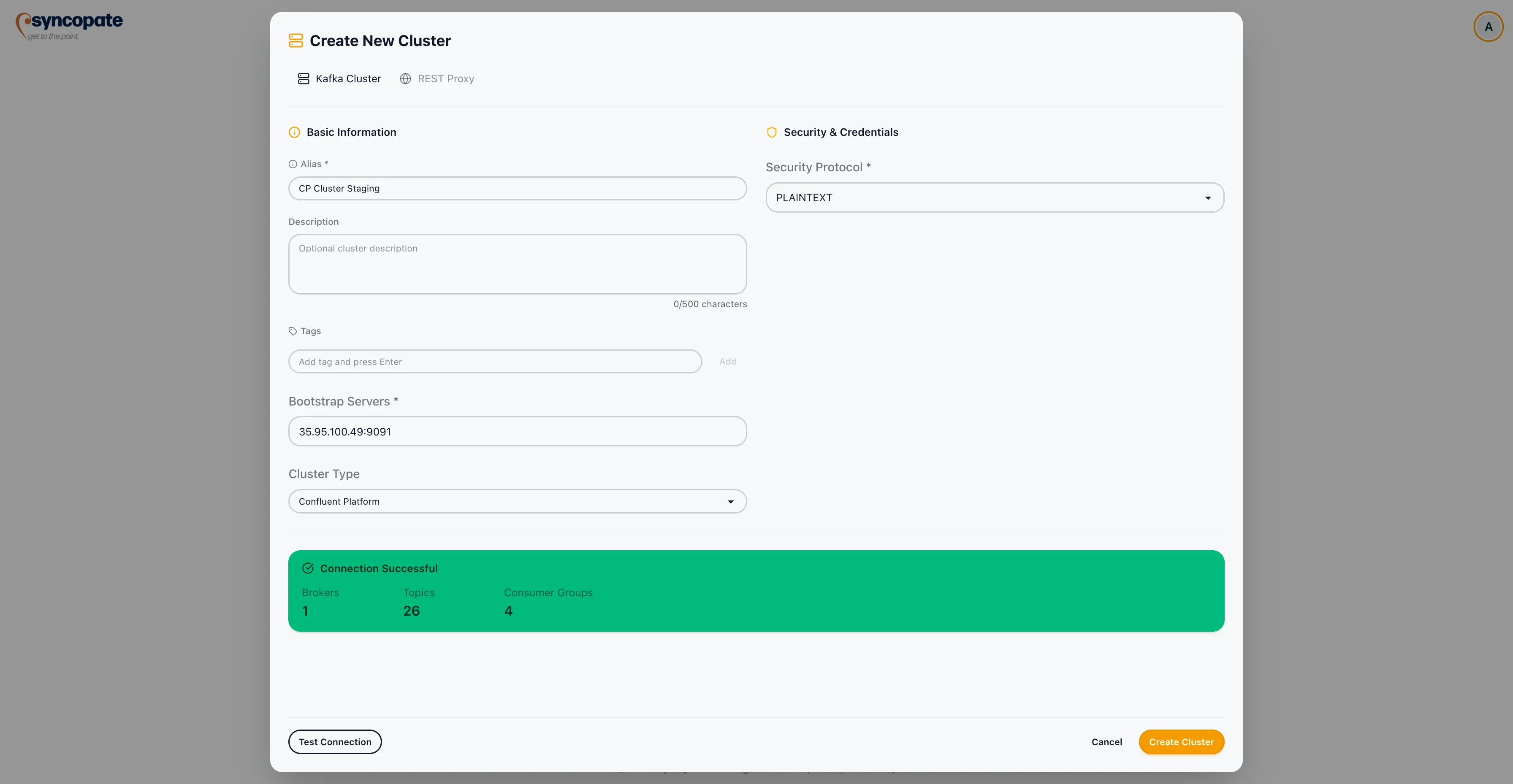
Proceed directly to testing the connection.
SASL authentication over an unencrypted connection.
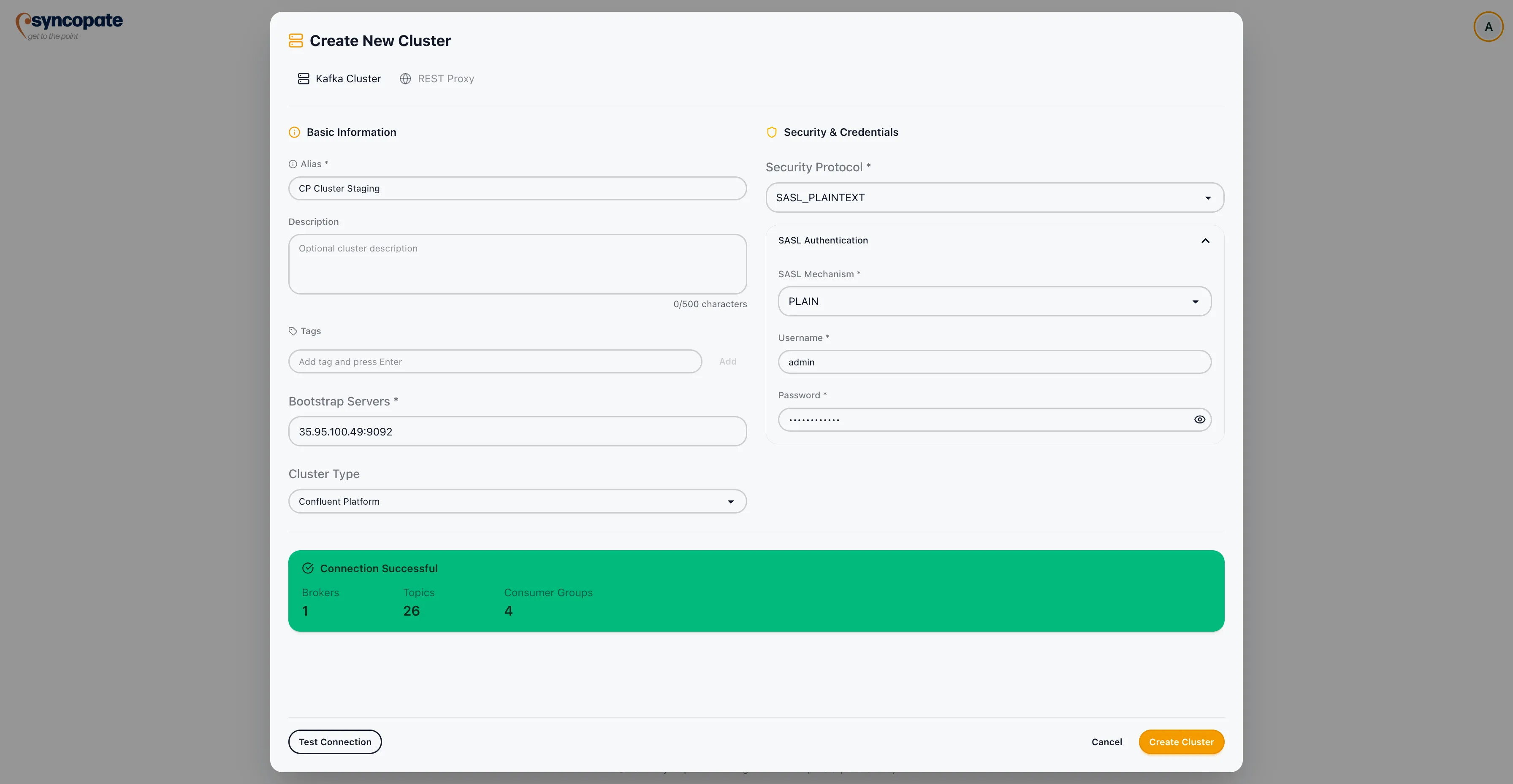
| Field | Required | Description |
|---|---|---|
| SASL Mechanism | Yes | The SASL mechanism to use. See SASL Mechanism below. |
| Username | Yes | SASL username for authentication. |
| Password | Yes | SASL password for authentication. |
Additional fields appear depending on the selected SASL Mechanism. See SASL Mechanism for details.
SASL authentication over an SSL-encrypted connection. This is the most common configuration for managed Kafka services.
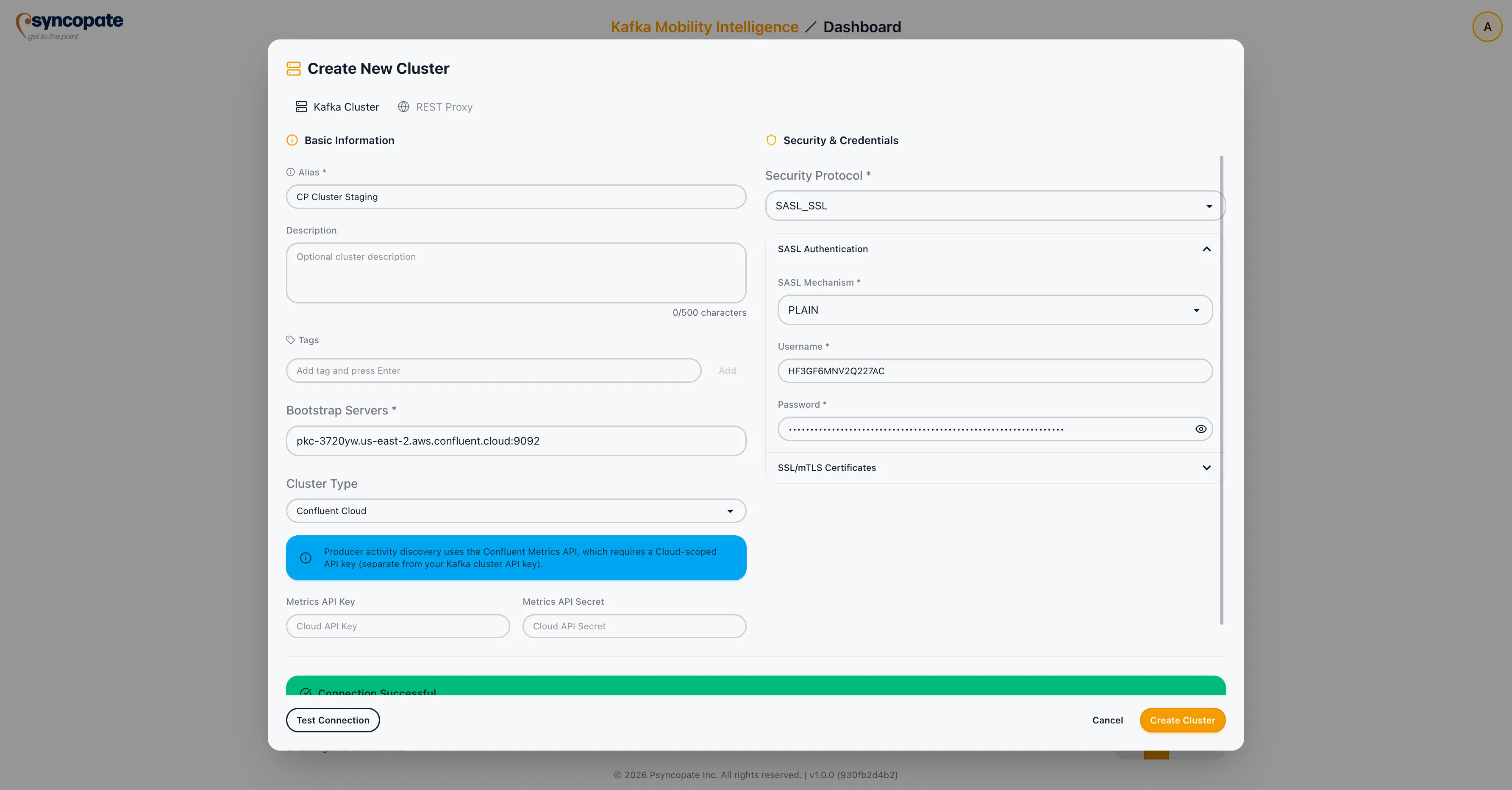
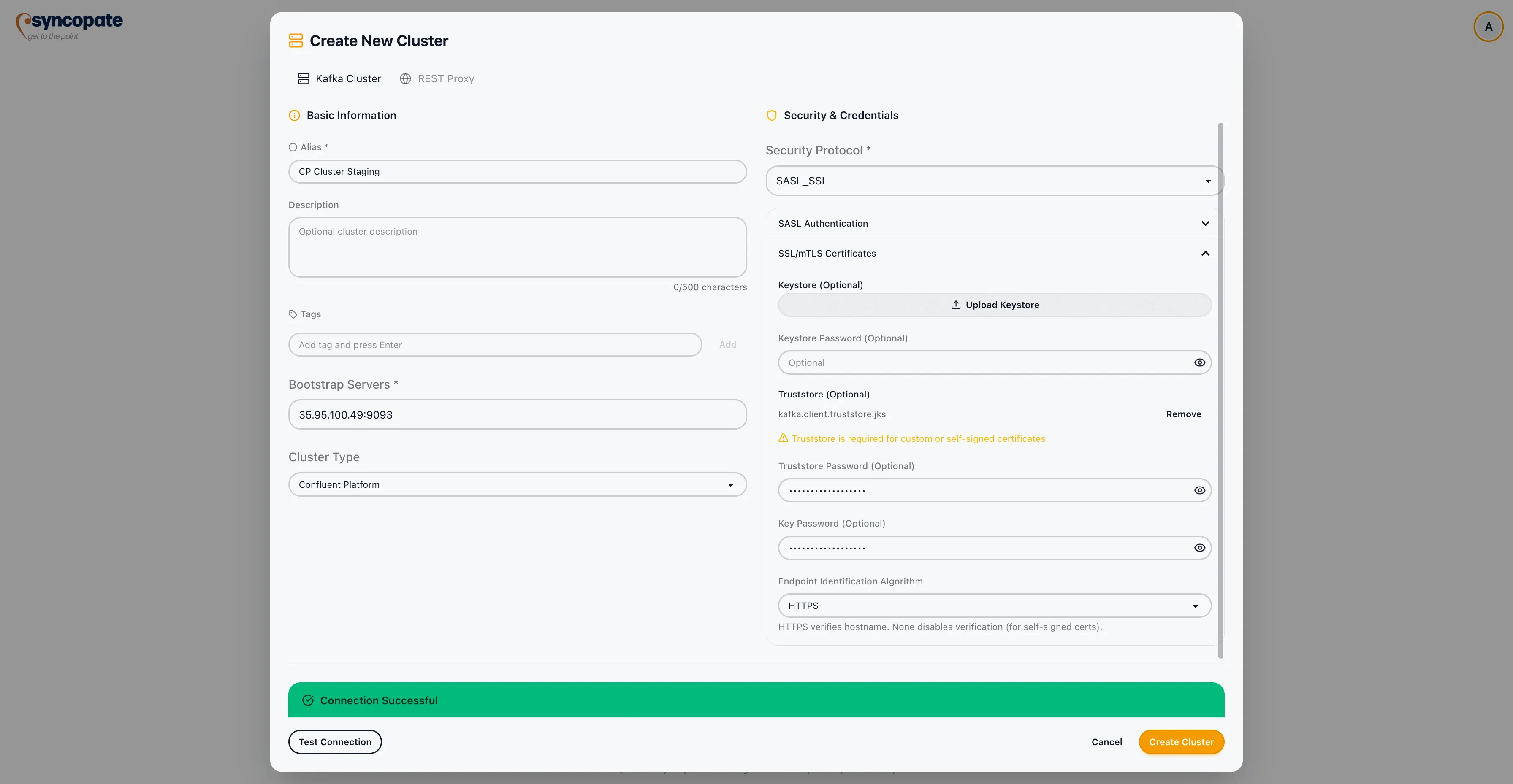
| Field | Required | Description |
|---|---|---|
| SASL Mechanism | Yes | The SASL mechanism to use. See SASL Mechanism below. |
| Username | Yes | SASL username for authentication. |
| Password | Yes | SASL password for authentication. |
| SSL Truststore File | No | Upload a truststore file for custom CA certificates. |
| SSL Truststore Password | No | Password for the truststore file. |
| SSL Keystore File | No | Upload a keystore file for client certificate authentication. |
| SSL Keystore Password | No | Password for the keystore file. |
Additional fields appear depending on the selected SASL Mechanism. See SASL Mechanism for details.
Certificate-based mutual TLS authentication.
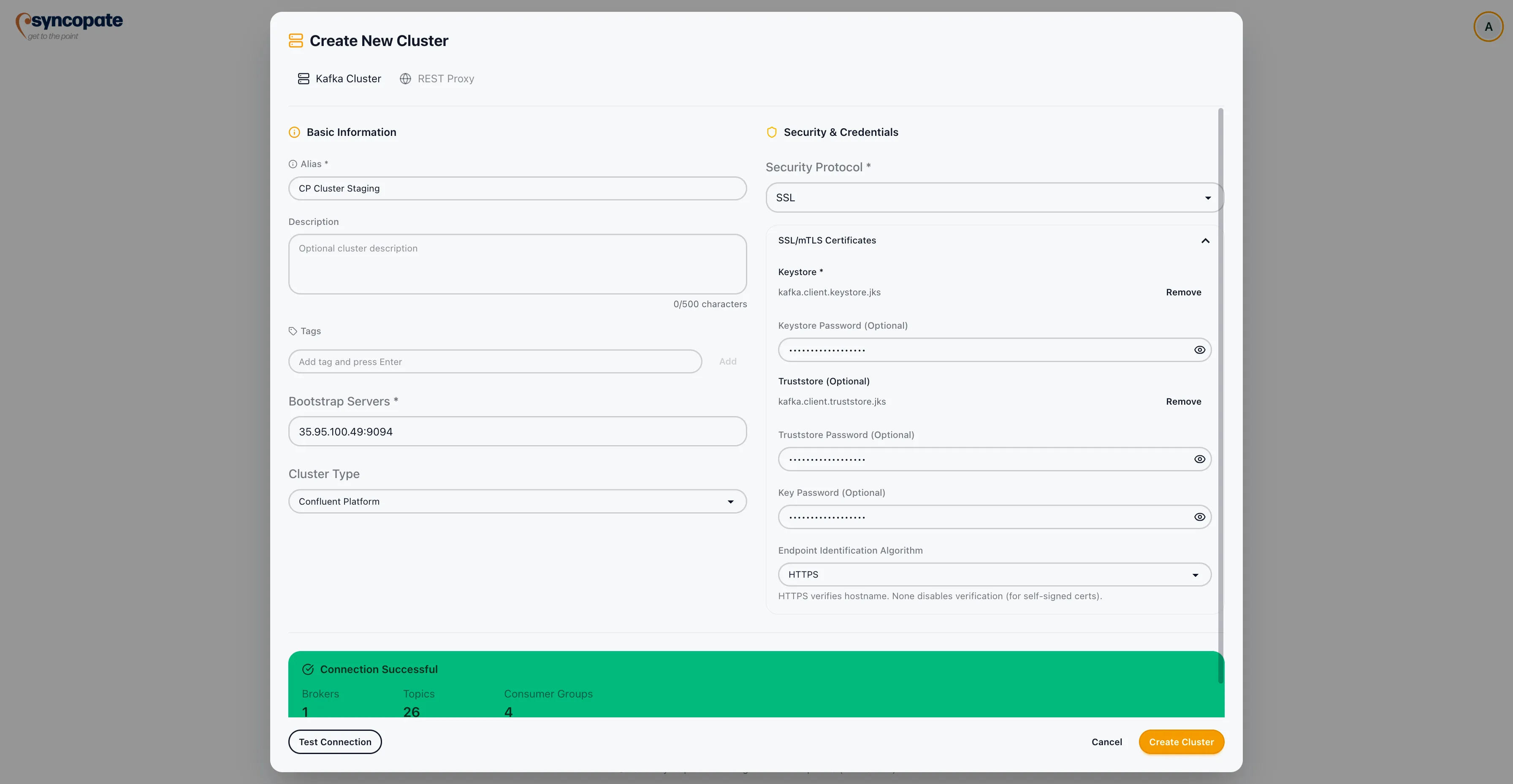
| Field | Required | Description |
|---|---|---|
| SSL Truststore File | Yes | Upload the truststore file containing the CA certificate chain. |
| SSL Truststore Password | Yes | Password for the truststore file. |
| SSL Keystore File | Yes | Upload the keystore file containing the client certificate and private key. |
| SSL Keystore Password | Yes | Password for the keystore file. |
SASL Mechanism
Section titled “SASL Mechanism”When SASL_PLAINTEXT or SASL_SSL is selected as the security protocol, a SASL Mechanism dropdown appears. The mechanism determines how client credentials are exchanged with the broker.
| Mechanism | Description |
|---|---|
| PLAIN | Simple username/password authentication. No additional fields beyond Username and Password. |
| SCRAM-SHA-256 | Salted Challenge Response authentication using SHA-256. No additional fields beyond Username and Password. |
| SCRAM-SHA-512 | Salted Challenge Response authentication using SHA-512. No additional fields beyond Username and Password. |
| GSSAPI (Kerberos) | Kerberos-based authentication using a keytab file and principal. Requires a keytab file, Kerberos principal, and krb5.conf. Not available for Confluent Cloud clusters. See GSSAPI (Kerberos) Fields below. |
| AWS_MSK_IAM | AWS IAM-based authentication for Amazon MSK clusters. Uses the same Username and Password fields as other SASL mechanisms, where the Username maps to the AWS access key and the Password maps to the AWS secret key. |
| OAUTHBEARER | OAuth 2.0-based authentication. When selected, additional OAuth-specific fields appear as described below. |
GSSAPI (Kerberos) Fields
Section titled “GSSAPI (Kerberos) Fields”When the GSSAPI (Kerberos) SASL mechanism is selected, the Username and Password fields are replaced by Kerberos-specific fields.
Prerequisites
Section titled “Prerequisites”Before configuring a Kerberos cluster, obtain the following from your Kerberos administrator:
- A keytab file (e.g.,
client.keytab) for the Kafka client principal - The Kerberos principal in the format
user@REALM.COMorservice/hostname@REALM.COM - The krb5.conf file defining your realm and KDC settings
- The Kafka broker service name (defaults to
kafka, confirm with your broker admin)
Kerberos Fields
Section titled “Kerberos Fields”| Field | Required | Default | Description |
|---|---|---|---|
| Keytab File | Yes | — | Upload your .keytab file. Stored AES-256-GCM encrypted at rest. |
| Kerberos Principal | Yes | — | The Kerberos principal. Example: kafkaclient@EXAMPLE.COM or service/hostname@REALM.COM. |
| Service Name | No | kafka | Kerberos principal name of the Kafka broker. Must match sasl.kerberos.service.name on the broker. |
| Kerberos Configuration (krb5.conf) | Yes | — | Upload your krb5.conf file. Contains realm and KDC settings. Stored AES-256-GCM encrypted at rest. |
Use SASL_PLAINTEXT when the Kafka broker accepts Kerberos authentication over an unencrypted connection.
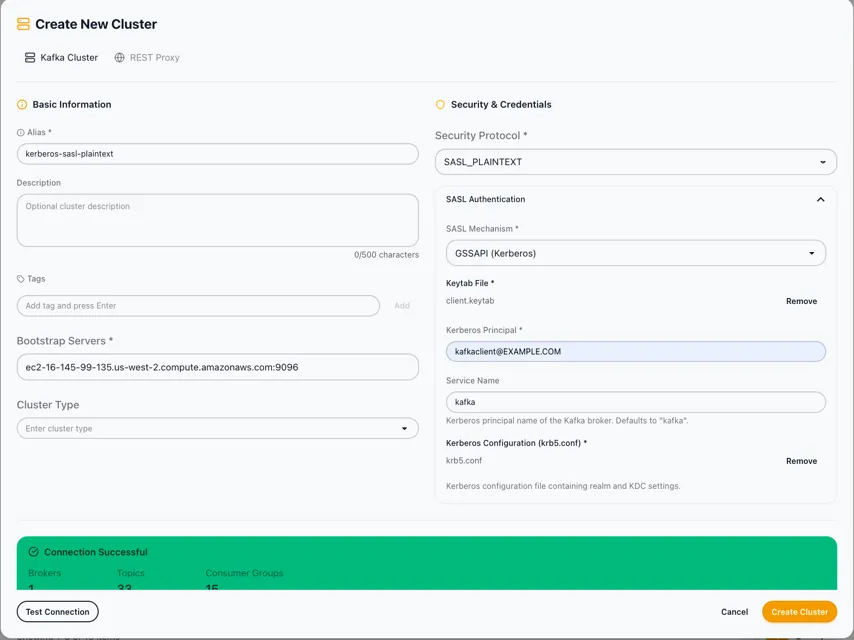
Use SASL_SSL when the Kafka broker requires Kerberos authentication over a TLS-encrypted connection. This is the recommended configuration for production environments.
In addition to the Kerberos fields above, the standard SSL fields (Truststore, Keystore) are available for configuring TLS.
Editing Kerberos Credentials
Section titled “Editing Kerberos Credentials”When editing a cluster that already has Kerberos configured, the file fields show the existing encrypted state:
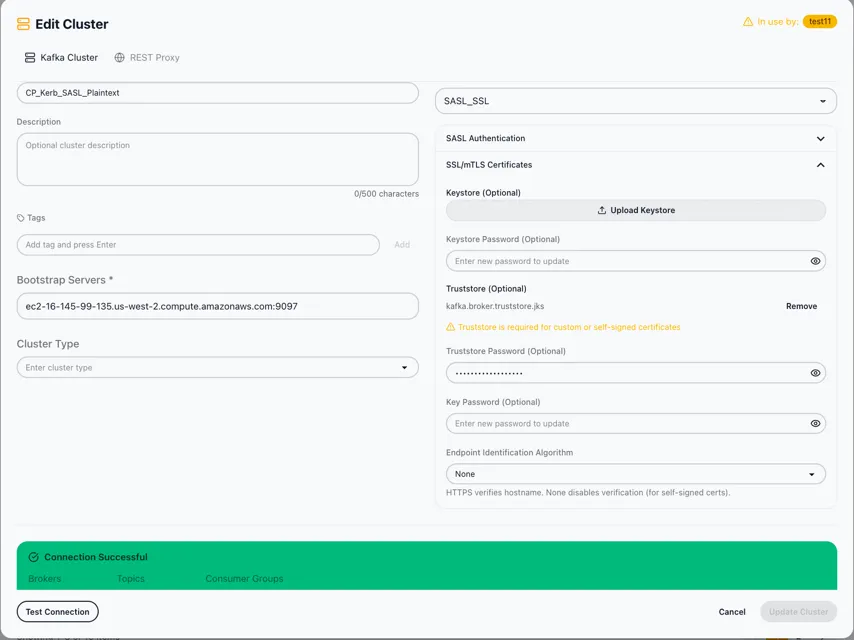
| Field | Behaviour when editing |
|---|---|
| Keytab File | Shows Existing keytab (encrypted) if already stored. Click Remove then re-upload to replace it. |
| Kerberos Principal | Pre-filled with the saved value. Edit directly in the text field. |
| Service Name | Pre-filled with the saved value (default: kafka). |
| Kerberos Configuration (krb5.conf) | Shows Existing krb5.conf (encrypted) if already stored. Click Remove then re-upload to replace it. |
OAUTHBEARER Fields
Section titled “OAUTHBEARER Fields”When the OAUTHBEARER SASL mechanism is selected, the following additional fields are displayed.
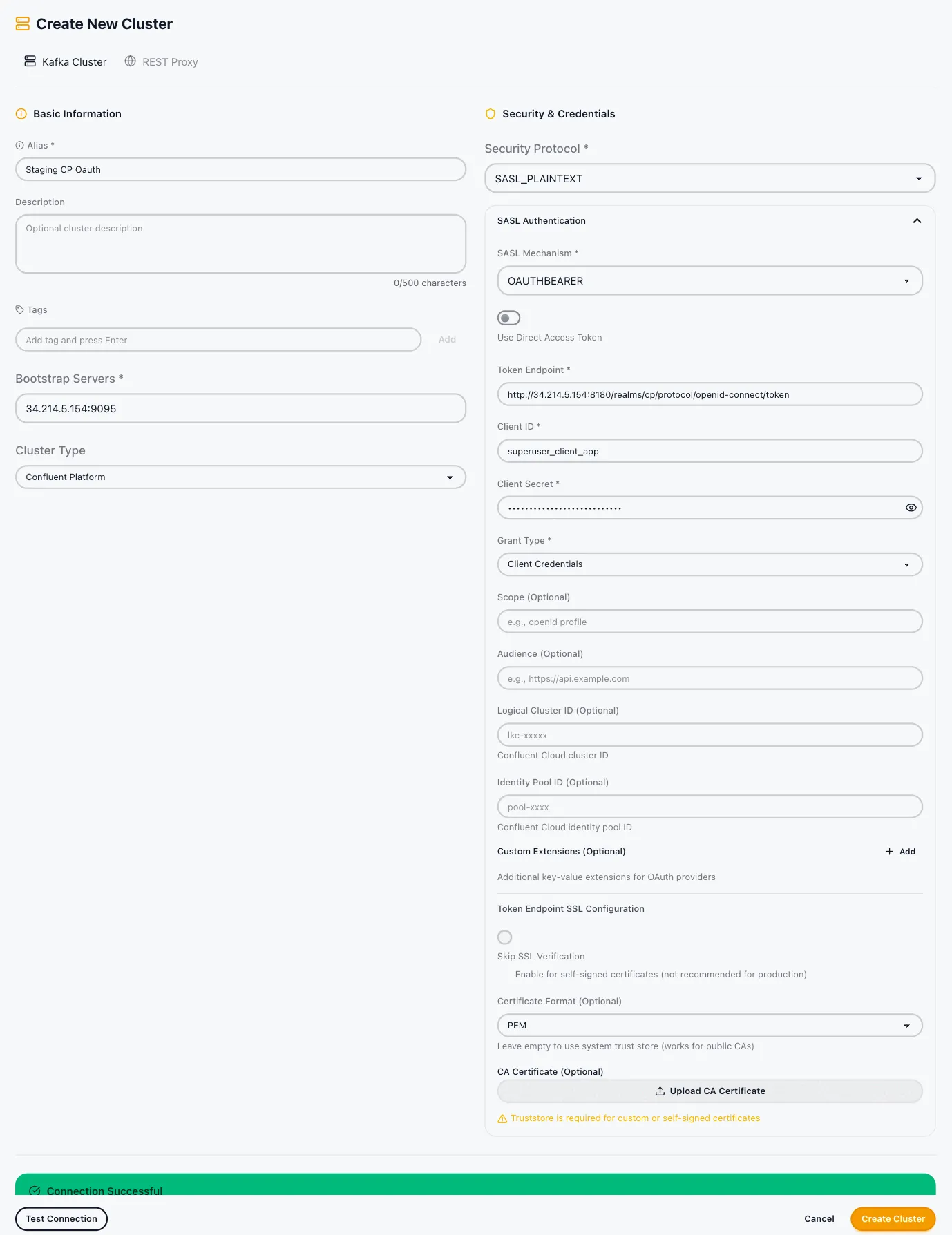
Client Credentials Mode
| Field | Required | Description |
|---|---|---|
| Token Endpoint | Yes | The OAuth 2.0 token endpoint URL. |
| Client ID | Yes | The OAuth client identifier. |
| Client Secret | Yes | The OAuth client secret. |
| Grant Type | Yes | The OAuth grant type. Supported values: client_credentials, password, refresh_token. |
Direct Access Token Mode
Provide a pre-obtained access token directly instead of using the client credentials flow.
Optional Fields (both modes)
| Field | Description |
|---|---|
| Scope | OAuth scope to request. |
| Audience | Target audience for the token. |
| Logical Cluster ID | The Confluent Cloud cluster ID (e.g., lkc-xxxxx) used in multi-tenant environments. |
| Identity Pool ID | Identity pool identifier for federated authentication. |
| Custom Extensions | Additional key-value pairs to include in the token request. |
REST Proxy Configuration
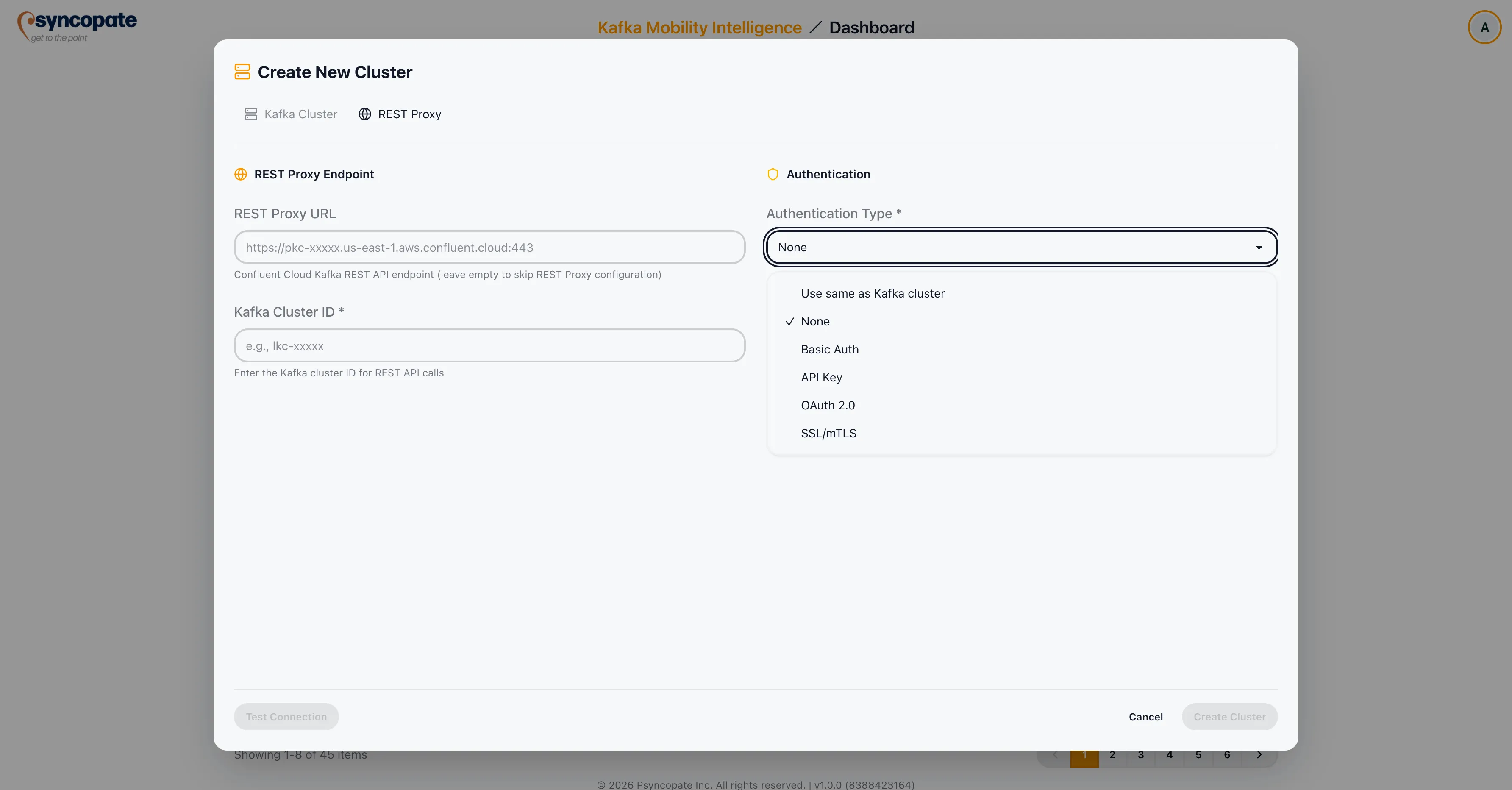
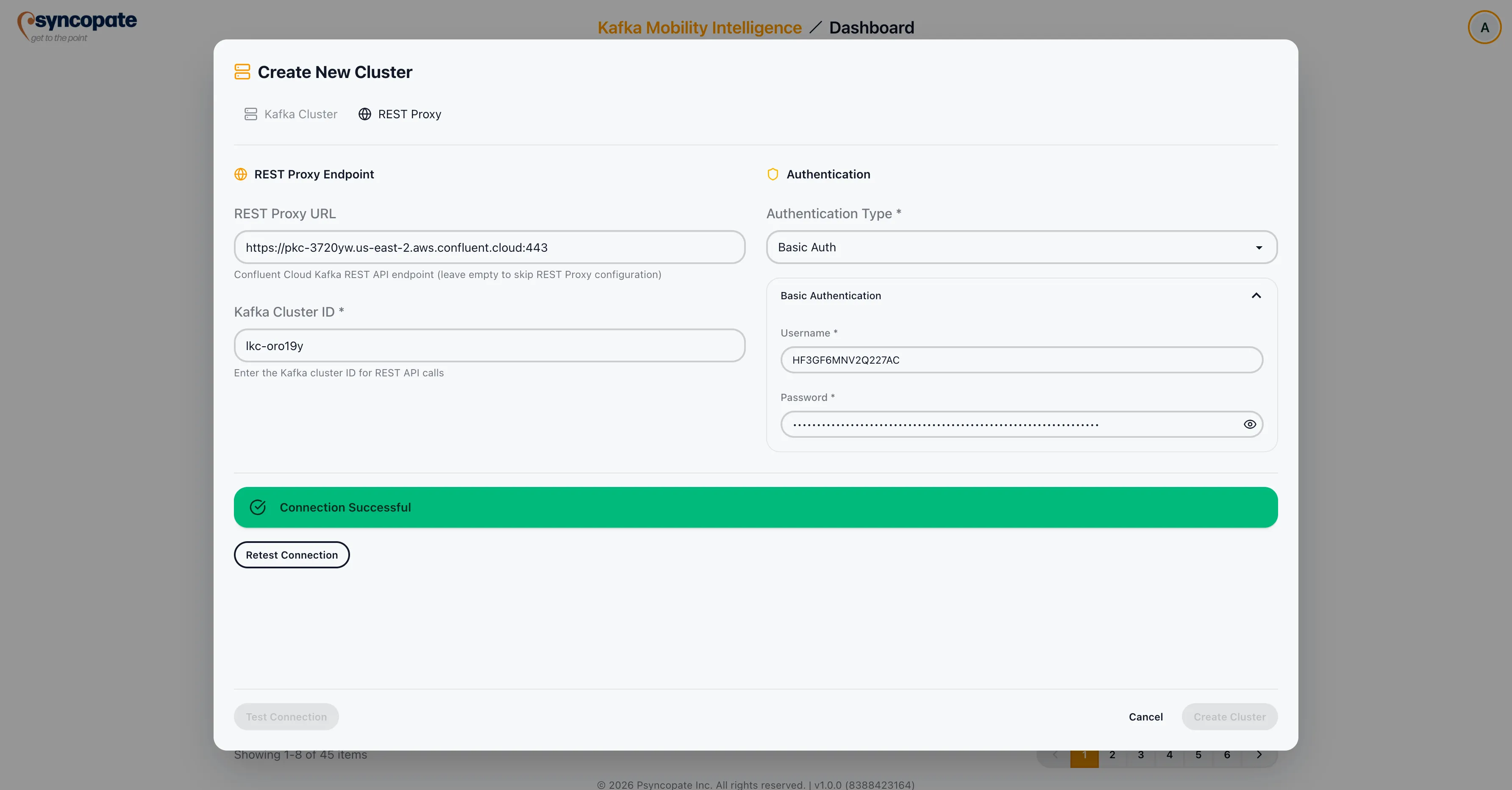
Section titled “REST Proxy Configuration”REST Proxy configuration is required when using Cluster Linking as the replication tool. If you do not plan to use Cluster Linking, this section can be skipped.
| Field | Required | Description |
|---|---|---|
| REST Proxy URL | Yes | The base URL of the Kafka REST Proxy instance. |
| Cluster ID | Yes | The Kafka cluster ID used by the REST Proxy. This field may be auto-filled after a successful Kafka cluster connection test, but you can also enter or override the value manually. |
REST Proxy Authentication
Section titled “REST Proxy Authentication”Select the authentication type for the REST Proxy connection:
| Auth Type | Fields |
|---|---|
| None | No credentials required. |
| Basic Auth | Username and Password. |
| API Key | API Key and API Secret. |
| OAuth 2.0 | Token Endpoint, Client ID, Client Secret, and optional Scope/Audience. |
| SSL/mTLS | Client certificate and key for mutual TLS. |
| Use same as Kafka cluster | Reuses the authentication credentials configured for the Kafka cluster connection. No additional fields are required. |
After configuring REST Proxy settings, click Test REST Proxy Connection to verify connectivity.
Testing the Connection
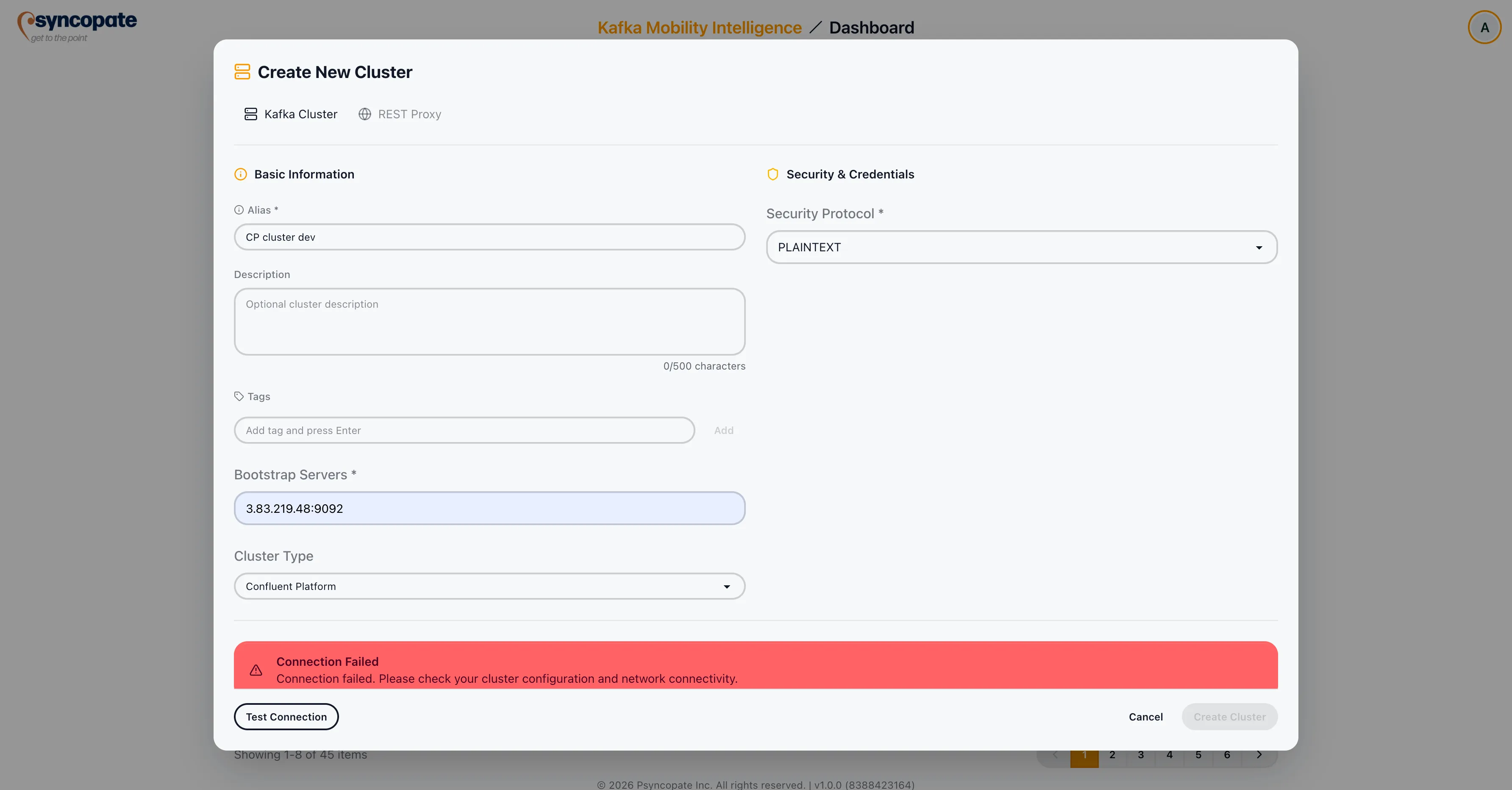
Section titled “Testing the Connection”After entering your cluster details, click Test Connection to verify that the suite can communicate with the Kafka cluster. A successful test confirms that the bootstrap servers are reachable and the provided credentials are valid.
Managing Clusters
Section titled “Managing Clusters”Editing a Cluster
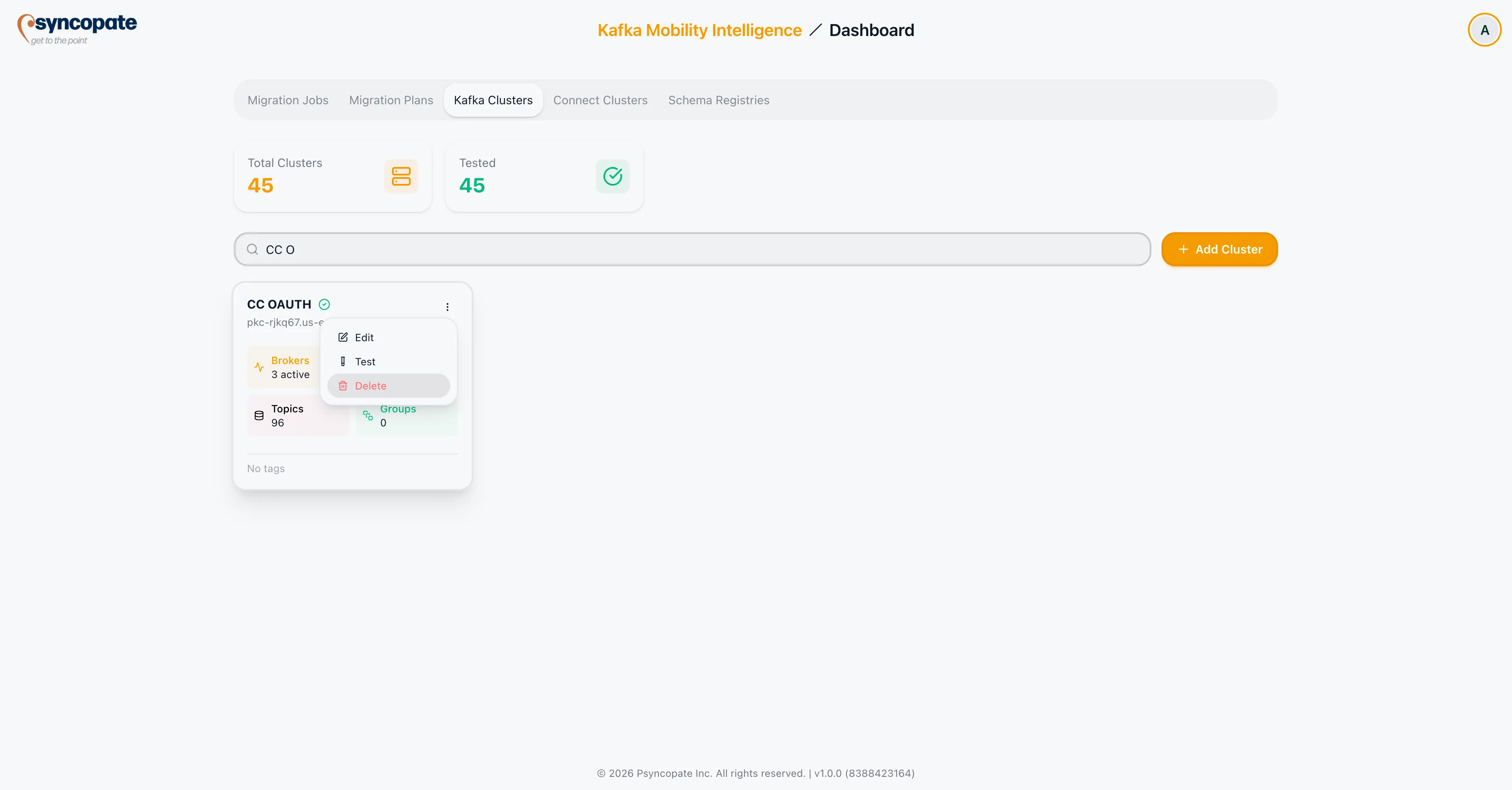
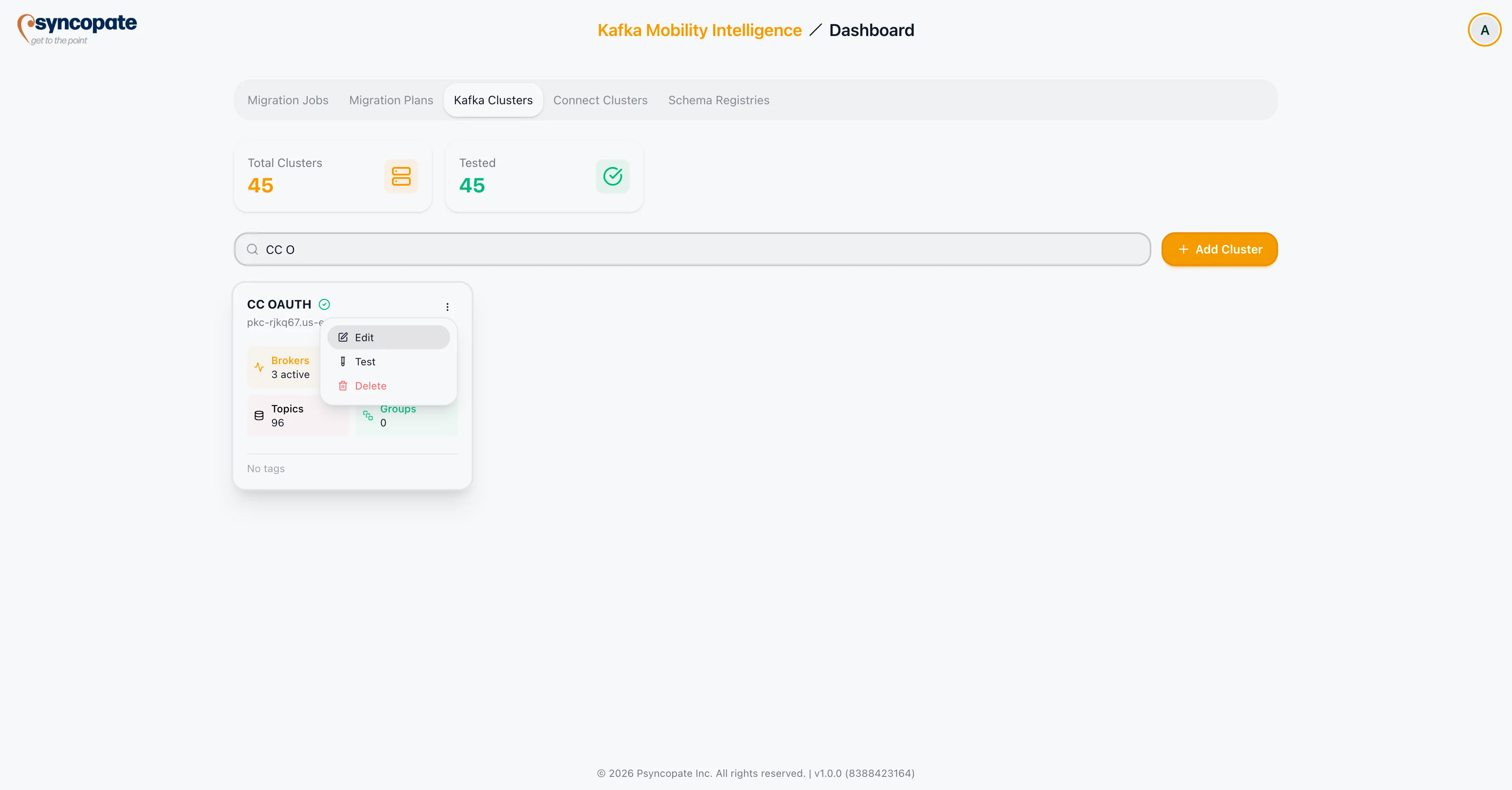
Section titled “Editing a Cluster”Click the three-dot menu on any cluster row and select Edit to modify its configuration.
Deleting a Cluster
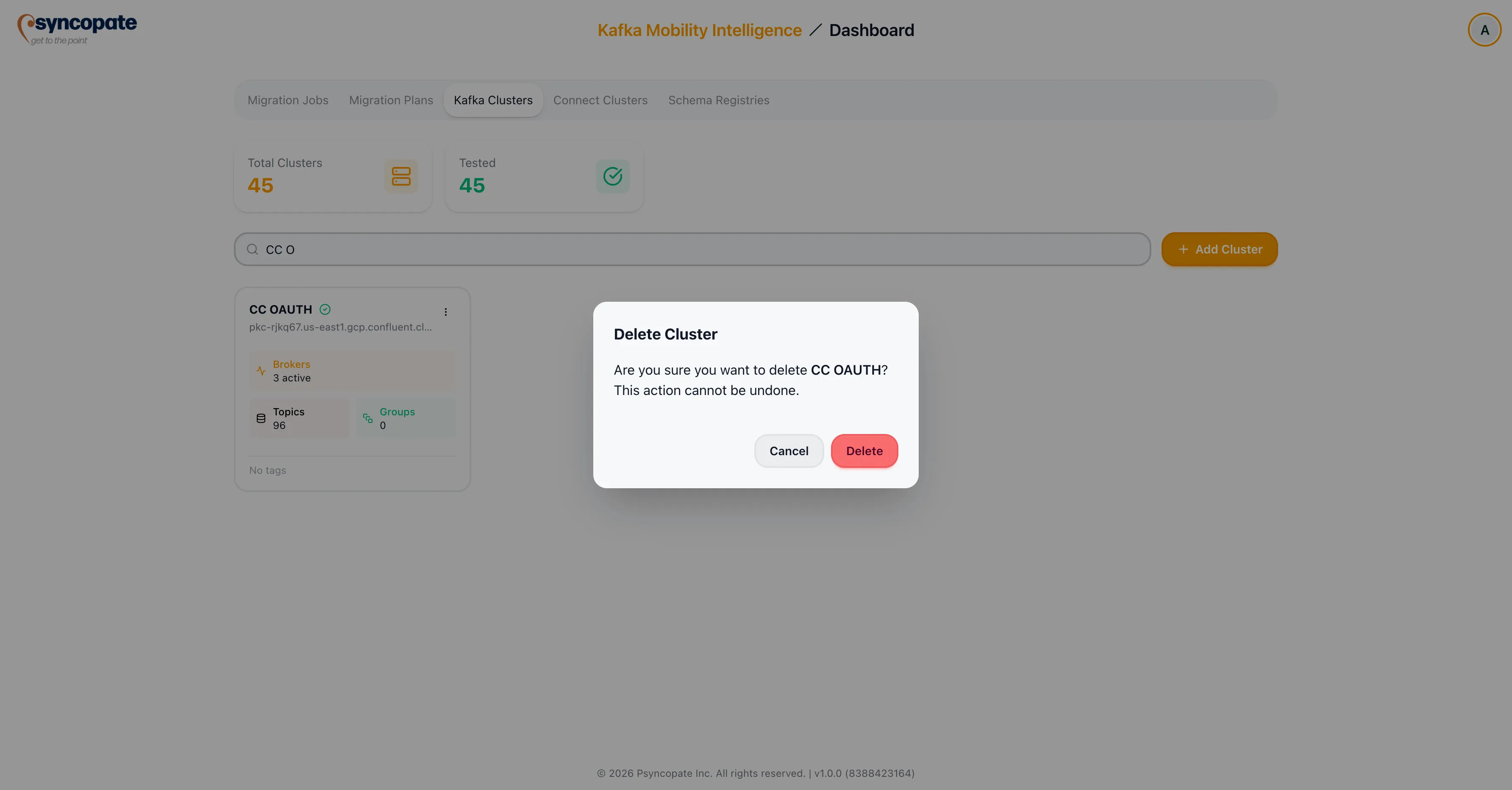
Section titled “Deleting a Cluster”Click the three-dot menu and select Delete. A confirmation dialog is displayed before the cluster is removed.