Builder Workspace
Open the builder from a gateway card’s kebab menu, or via Edit in Builder on the detail page.
Toolbar
Section titled “Toolbar”| Element | Description |
|---|---|
| Back | Returns to the gateway detail page. |
| State tabs | Init / Fenced / Switchover, each showing separate red (error) and amber (warning) count badges when issues exist. |
| Copy from… | Shown next to the tabs on Fenced (“Copy from init”) and Switchover (“Copy from fenced”). Copies that state’s full config over the current one. |
| Preview | Opens a Generated Config Preview modal; see below. |
| Issue badge | Shown when any state has validation issues, labeled with the error/warning breakdown (e.g. “2 errors, 1 warning”). Lists every issue, error-severity first; clicking one switches to that state and selects the offending block. |
| Unsaved | Appears whenever there are pending unsaved changes and clears after a successful Save. |
| Download | See below; blocked by toast, not disabled. |
| Save | Persists all three state configs, secret store auth mappings, and node positions, and shows a “Gateway saved” toast. |
Canvas and Component Palette
Section titled “Canvas and Component Palette”A collapsible palette above the canvas lets you drag in blocks, grouped as:
| Category | Blocks |
|---|---|
| Routing | Route |
| Client Auth | mTLS, SCRAM, SASL Plain, OAuth, None |
| Cluster Auth | mTLS, OAuth, OAuthBearer, SASL Plain, Digest, None |
| Streaming | Domain |
| Secret Stores | File, Vault, AWS, Azure |
Bootstrap servers aren’t a separate palette block: they’re managed inline on the Streaming Domain node, which seeds one bootstrap server automatically when added. External Access isn’t in the palette either, and nothing in the builder can create one. It doesn’t need to: every new gateway is created with an External Access block already present in all three states, whether you started from a migration template or from an empty gateway. The Inspector edits that block’s fields (see Block Reference) and it appears as its own canvas node, connected to every route in that state by an edge. When a state has none, the Inspector reads “No external access configured.”
The canvas renders these as nodes connected by edges: a route connects to its client auth, cluster auth, secret store, and streaming domain. On the canvas, a Client Auth node is titled Source Auth, a Cluster Auth node is titled Upstream Auth, and a Secret Store node is titled Secret Auth Mapping. The palette calls them Client Auth, Cluster Auth, and Secret Store. The Inspector labels a selected block by side and type instead, as in Auth - client - mtls or Secret Store - Vault, so the compound palette names don’t appear there. A route node is titled “Route”, or “Route - fenced” when it carries a fence, and shows a swap-or-passthrough badge. Passthrough routes render their auth/secret/cluster handles faded, since those references don’t apply.
A Streaming Domain node’s header shows its streaming type and bootstrap count (e.g. “kafka - 2 bootstraps”), and its body lists each bootstrap server and node ID range directly on the node, the same lists you edit in the Inspector.
You can wire a route directly on the canvas: drag a connection from the route to a Client Auth, Cluster Auth, Secret Store, or Streaming Domain node, and it writes that reference into the route. Which of the route’s connection points you drag from doesn’t matter, only which node you drop onto. Connecting a Client Auth, Cluster Auth, or Secret Store this way automatically promotes the route from Passthrough to Swap. Connecting a Streaming Domain always binds to that domain’s first bootstrap server, and selecting the domain in the Inspector does the same. There’s no field for choosing a different bootstrap entry, so a route always resolves against the first bootstrap server of the domain it points at.
Nodes and edges also reflect validation state directly on the canvas, not just in the toolbar’s Issue badge: a node with an issue gets a red (error) or amber (warning) border and icon, and its edges are colored the same way, red and dashed for an invalid reference (e.g. a swap route’s client auth no longer exists), amber and dashed for a warning, blue when selected, gray otherwise. Edges also carry a small label: the broker identification strategy for a route-to-domain edge, the auth type for a route-to-auth edge, or the store name for a route-to-secret-store edge.
A Re-layout button in the canvas’s zoom controls discards any manually-dragged node positions for the current state and reverts to the automatic layout. You can also delete a selected node with the Delete or Backspace key, the same as using its Inspector remove control, with one exception: on an External Access node those keys do nothing, and only the Inspector’s remove control takes effect.
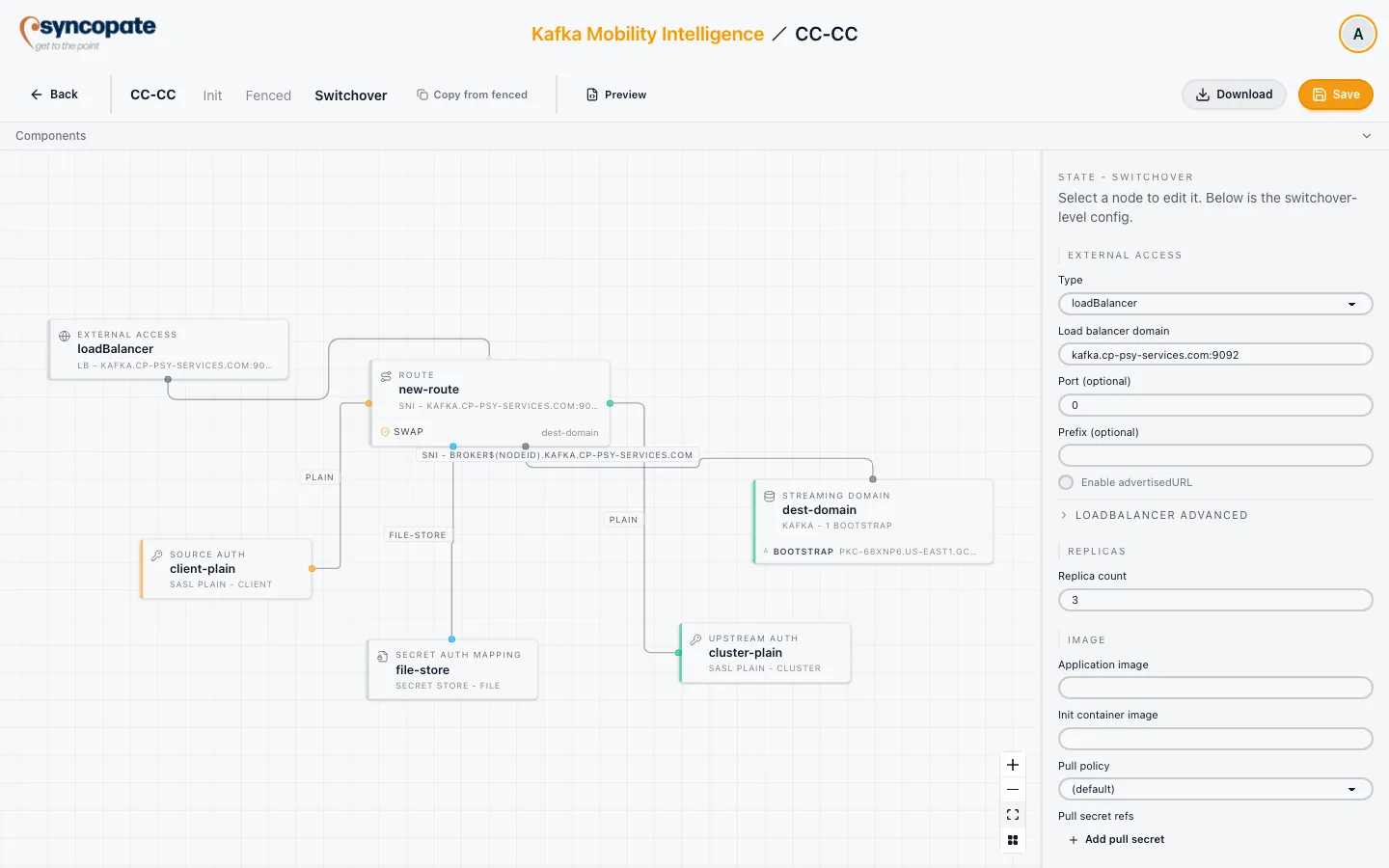
Inspector
Section titled “Inspector”Selecting nothing on the canvas shows the Inspector’s state-level configuration (External Access, Replicas, Image, Resources, Probes, Admin, JVM Tuning, Pod Template Advanced, Env vars); selecting a block shows its type, identifier, a remove control, and block-level fields specific to its type. Every field for both is covered in Block Reference.
An Apply migration template action exists on the canvas as an empty-canvas starting point, seeding all three states with the template options described in Creating a Gateway. In practice you will rarely see it. It renders only when the current state’s canvas has no nodes at all and all three states are empty of routes, auths, domains, and secret stores, and since every new gateway already carries an External Access node in each state, the canvas is not empty and the button does not appear.