Creating a Gateway
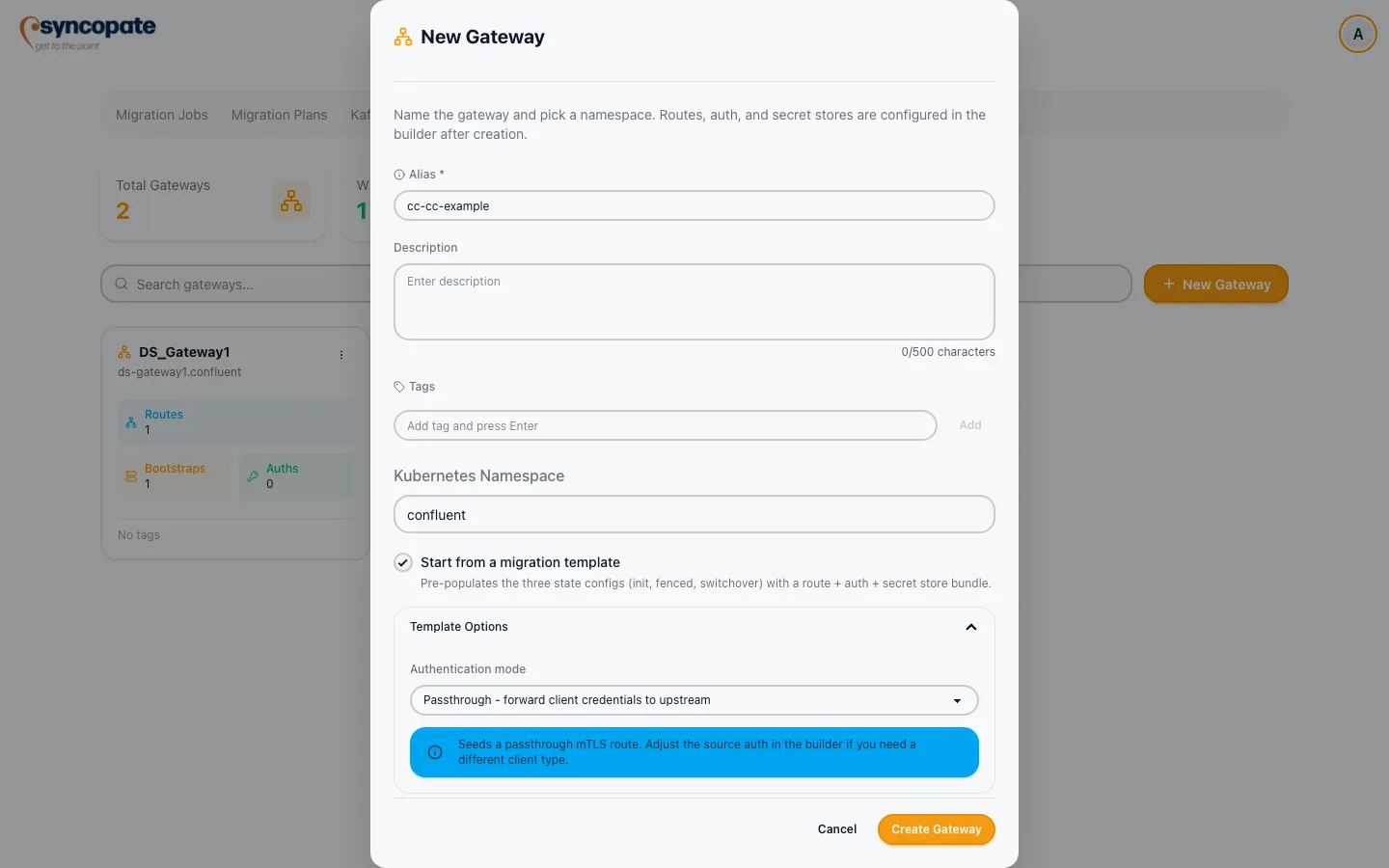
Click + New Gateway on the Gateways dashboard tab to open the New Gateway modal.
Basic Info
Section titled “Basic Info”| Field | Required | Description |
|---|---|---|
| Alias | Yes | The gateway’s display name; 2 to 50 characters, letters, numbers, spaces, hyphens, and underscores only, with at least one letter or number. |
| Description | No | Up to 500 characters. |
| Tags | No | Free-form tags, shown on the gateway card. |
| Kubernetes Namespace | No | Defaults to confluent. |
Routes, auth, and secret stores are configured in the builder after creation: this modal only sets metadata.
Starting Without a Template
Section titled “Starting Without a Template”Leave Start from a migration template unchecked to create a gateway with three empty states (Init, Fenced, Switchover), each holding only workload defaults (replicas, external access, probes, admin config, resources) and no routes, auth blocks, or secret stores. Build these out afterward in the Builder Workspace.
Starting From a Migration Template
Section titled “Starting From a Migration Template”Checking Start from a migration template reveals Template Options, which pre-populate all three state configs with a route, plus auth and secret-store blocks, where the selected mode requires them:
Authentication Mode
Section titled “Authentication Mode”| Mode | Behavior |
|---|---|
| Passthrough | Forwards client credentials to the upstream cluster unchanged. Seeds a passthrough mTLS route in all three states; no secret store is created. Adjust the source auth in the builder afterward if your clients use a different auth type. |
| Swap | Replaces client credentials at the gateway. Reveals Source auth, Upstream auth, and Secret store selectors. |
Swap Mode Options
Section titled “Swap Mode Options”| Source auth | Upstream auth | Secret store |
|---|---|---|
| mTLS | OAuth or SASL/PLAIN | File store, HashiCorp Vault, AWS Secrets Manager, or Azure Key Vault |
| SASL/SCRAM | OAuth or SASL/PLAIN | Same options |
| SASL/PLAIN (API Key) | OAuth or SASL/PLAIN | Same options |
| None (unauthenticated) | OAuth or SASL/PLAIN | Same options |
Apply migration template is also available from inside the builder canvas, but only while all three states are still empty. It’s an empty-canvas starting point, not a way to re-seed a gateway you’ve already started configuring; once any state has content, the button no longer appears.
Result
Section titled “Result”On success, a Gateway created toast confirms the alias is ready to configure. Created from the Gateways tab, the gateway opens straight in the Builder Workspace; created from the planner’s gateway selection step, it’s added to that step’s list and selected for the plan.
A failure shows an error toast and leaves the modal open so you can retry. The most common cause is a duplicate alias, since aliases must be unique, but the toast just reads “Failed to create gateway” with no further detail, so check for a name collision first.