Manage DR Resources
The Monitor tab includes sub-tabs within each link accordion for managing replicated resources on a running DR setup without re-running the wizard.
Accessing Manage Sub-tabs
Section titled “Accessing Manage Sub-tabs”- Open the Monitor tab on a running DR setup.
- Expand a link accordion.
- Select the Topics, Consumer Groups, or Schemas sub-tab within that accordion.
Actions on passive directions are restricted. Only active directions accept resource changes.
Add Mirror Topics
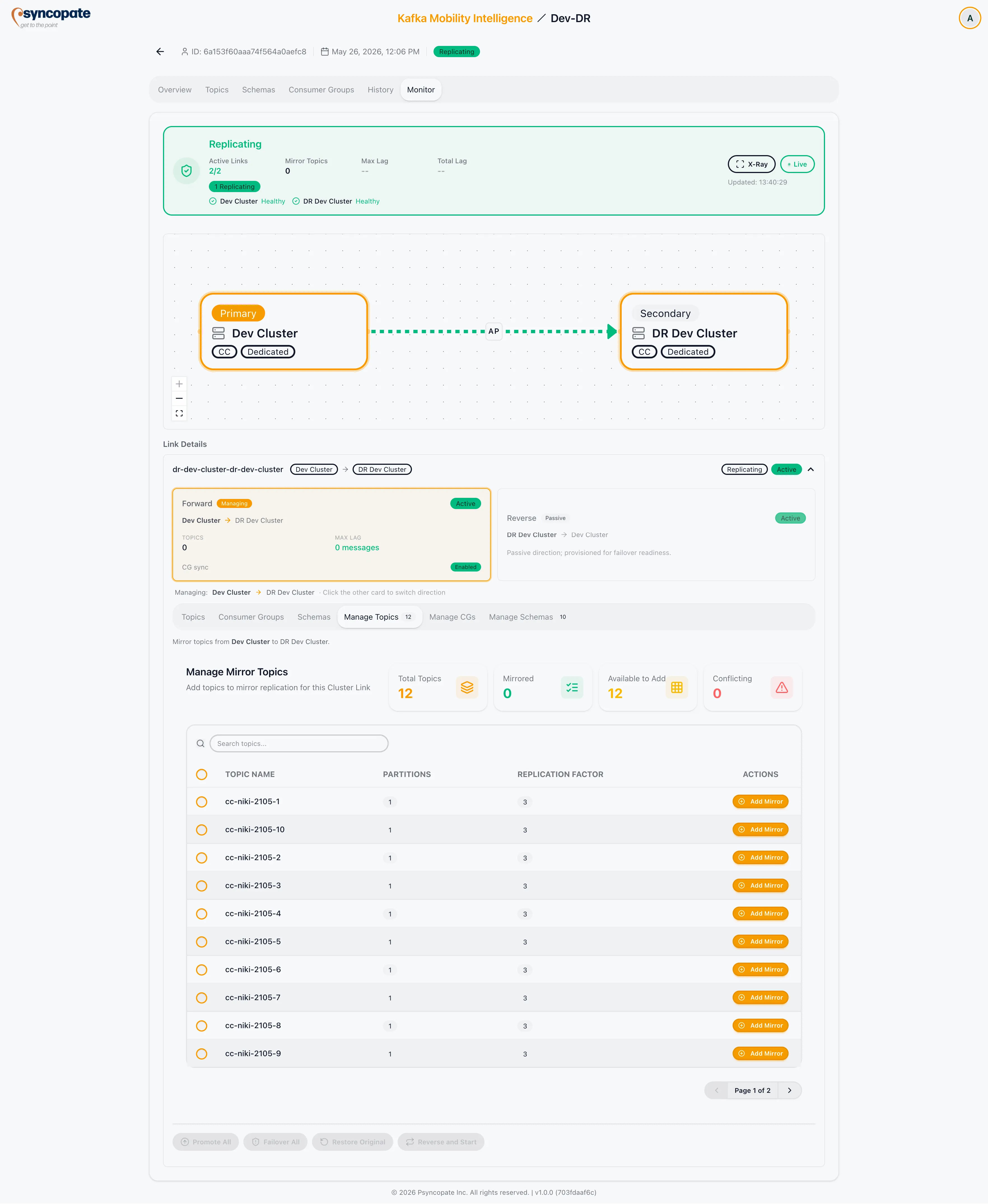
Section titled “Add Mirror Topics”Use the Topics sub-tab to add topics to the replication scope for a specific link direction.
Enter one or more topic names and confirm. The topics are added to the active direction for that link. Topics added here are included in replication immediately without requiring re-configuration.
Topic Status Before Mirroring Starts
Section titled “Topic Status Before Mirroring Starts”Topics in a direction’s replication scope (see Topics Tab) appear in this sub-tab immediately after the DR setup starts, before any mirror data exists, with a Pending badge and -- in the partitions column until the first mirror-status snapshot arrives.
Include and Exclude Consumer Groups
Section titled “Include and Exclude Consumer Groups”Use the Consumer Groups sub-tab to modify which groups are included in offset sync.
| Action | Description |
|---|---|
| Include | Adds the specified consumer groups to offset sync for the selected direction |
| Exclude / Disable | Removes the specified consumer groups from offset sync |
Changes take effect immediately on the running link.
Add Schema Subjects
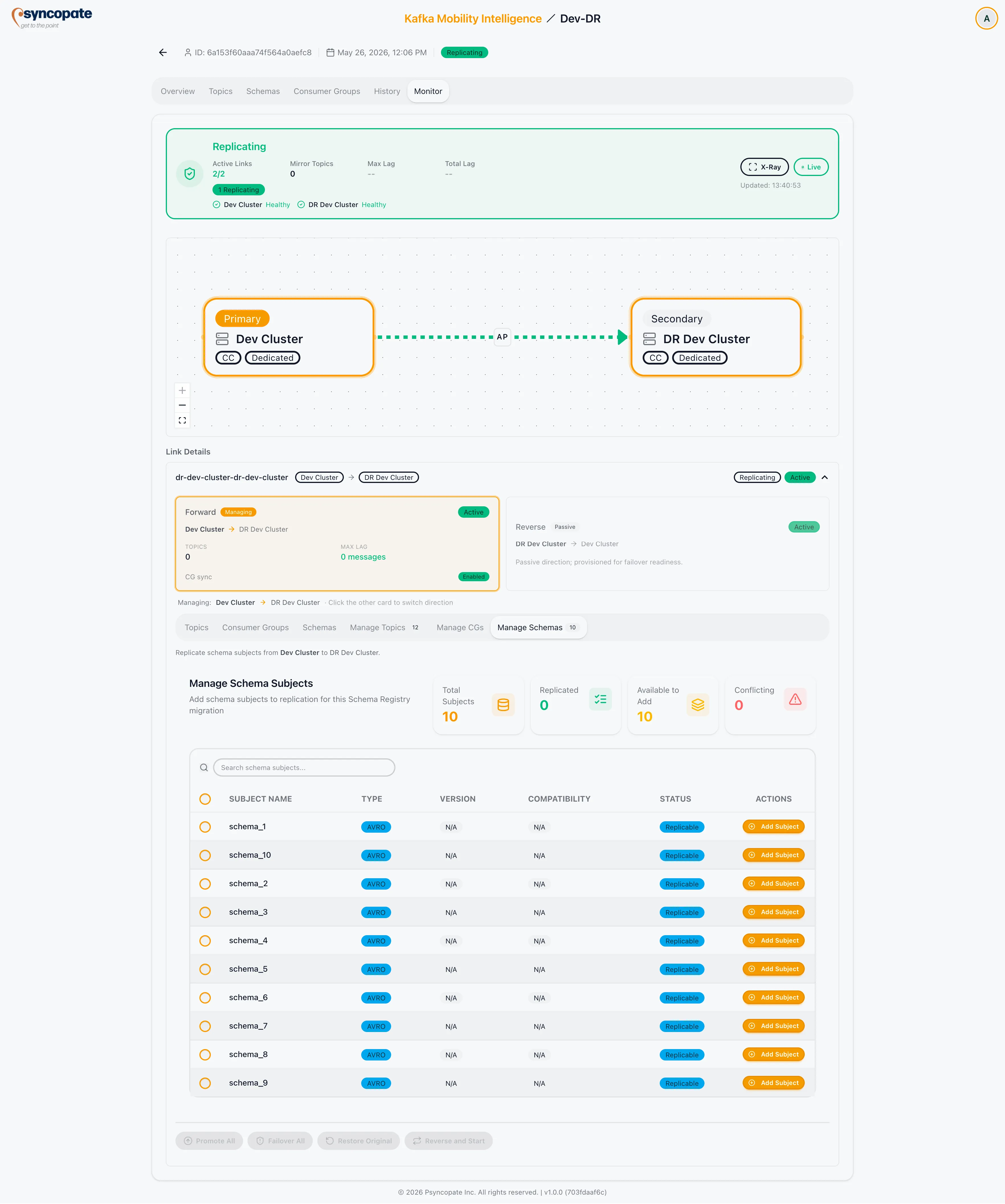
Section titled “Add Schema Subjects”Use the Schemas sub-tab to add schema subjects to a running schema exporter. Clicking Add Subjects opens a dialog listing the subjects on the source registry, each with a status that determines how it is added:
| Status | Meaning | Adding it |
|---|---|---|
| Replicated | Already being replicated | No action available |
| Replicable | Available to add, no conflict on the destination | A simple confirmation, then the subject begins replicating |
| Conflicting | Already exists on the destination registry | A destructive force-add: the destination copy is removed and the subject is re-pushed from the source |
You can add several subjects at once.
Promote Schema Subjects
Section titled “Promote Schema Subjects”Promoting a subject hands it over to the destination: the subject becomes writable on the destination registry so consumers can produce to it and evolve it, and it is no longer replicated from the source.
Promote All (N) appears on the Schemas sub-tab and requires the Manage Links permission. N counts the subjects still being replicated for the active direction, which excludes any already promoted, so the button disappears entirely once there is nothing left to promote. There is no per-subject promote: promotion is all-or-nothing for the direction. The button is disabled until every one of those subjects is synced, with the tooltip “All schemas must be synced before promoting”, and reads “Promote all N schema(s) and stop exporter” once it’s ready. Because promoting the last subject would leave the exporter with nothing to replicate, the exporter is stopped as part of the same action and its badge changes to Stopped. On a link with a single exporter you may not see that badge: once everything is promoted the read-only Schemas sub-tab has no replication data left and is disabled, as described below.
Adding Schemas After Full Promotion
Section titled “Adding Schemas After Full Promotion”The Manage Schemas sub-tab stays available after a direction’s exporter has stopped, so you can keep adding new subjects. The read-only Schemas sub-tab is the one that becomes unavailable at that point: with every subject promoted it has no replication data left to show, so it’s disabled with the tooltip “No schema replication data after all schemas are promoted”.
A subject you promoted earlier is a different matter: you cannot re-add it from this sub-tab. It keeps showing as Replicated with “Already replicated” where the Add control would be. This is not a stale reading that clears on the next poll. Promoted subjects are kept in the monitoring feed on purpose, and a subject only leaves the promoted set at the instant it is re-added, which is a state the sub-tab never lets you reach. A wildcard or all-subjects schema scope holds it as Replicated for a second reason, since promotion filters the named selection and leaves the wildcard untouched. Re-replicating a promoted subject is supported by the API but has no route through this screen.
Promotion is per direction: a subject promoted on one direction of an Active-Active link is unaffected on the other.
To replicate a new subject after full promotion, add it the same way as above. Adding a subject to a stopped exporter recreates it: the subjects are validated, import mode is attempted on the destination registry, and a new exporter is created with the named subject list. Its badge returns to Running as soon as that call succeeds, before the new subject has actually synced, and shows Failed if the call doesn’t. Promote All becomes available again once the newly added subjects are synced.